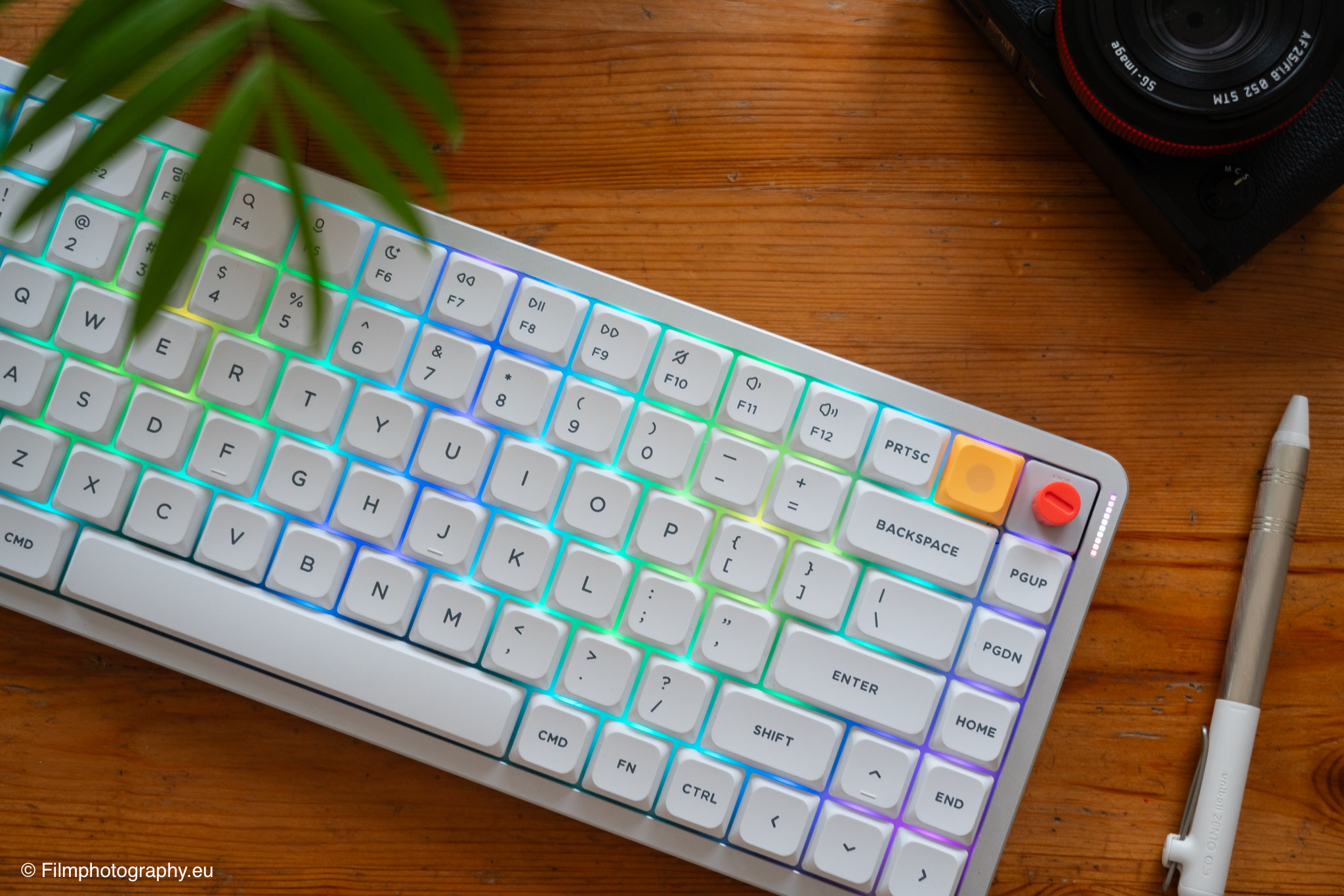
Like so many subjects—analog photography, for instance—mechanical keyboards are a true nerd topic. You can delve into every last detail, and I find it consistently remarkable to witness the passion with which people immerse themselves in this field.
However, this review is not a deep dive into features or technical details from a purely nerd perspective. Rather, my approach was to take a calm, considered look at what modern input devices actually have to offer today, and how they influence one’s personal workflow.
The NuPhy Brand
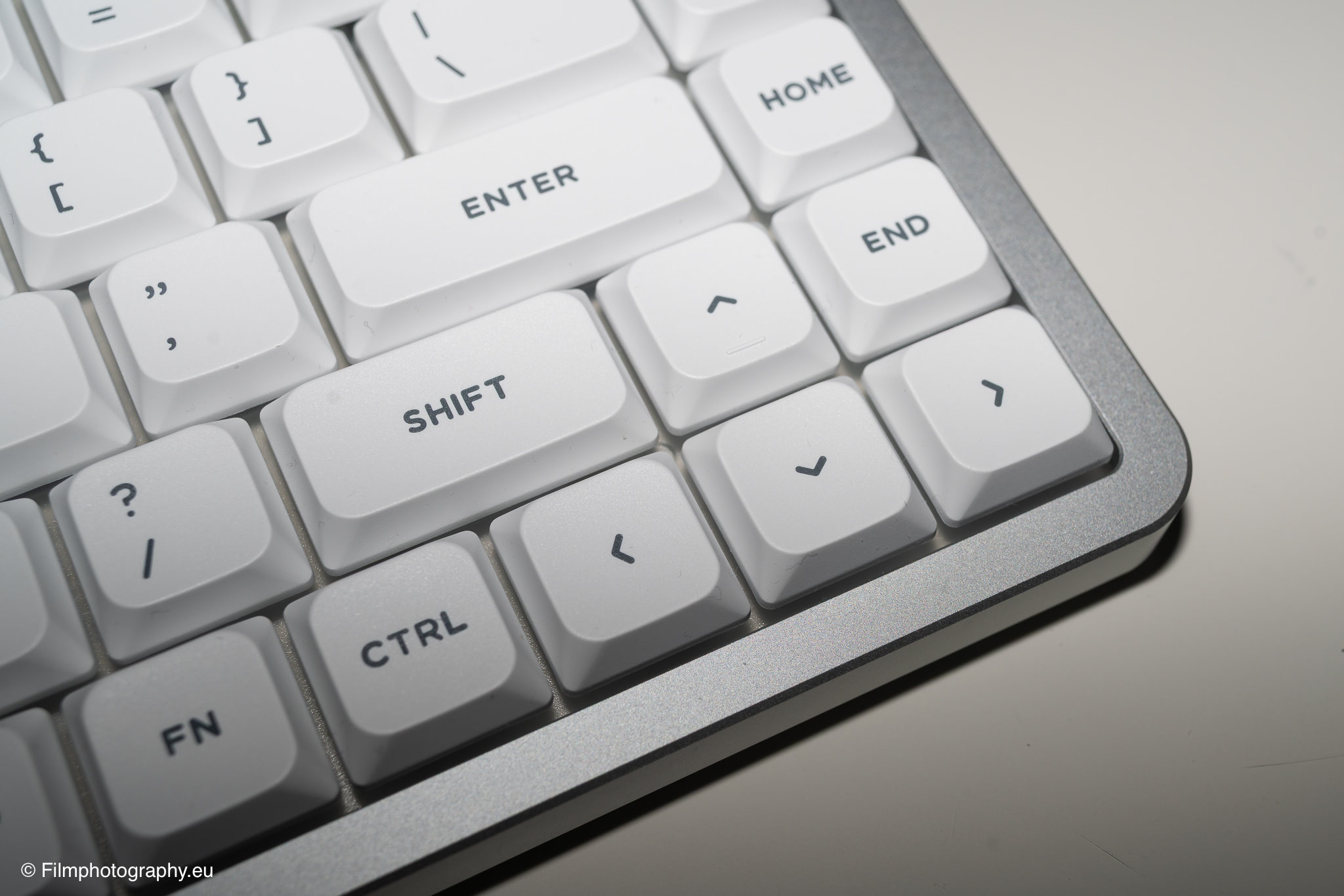
Over the past few years, the manufacturer NuPhy has made a name for itself within the mechanical keyboard community. The models in the Air series are aimed at users who prefer a slim profile—specifically, so-called “low-profile” keyboards.
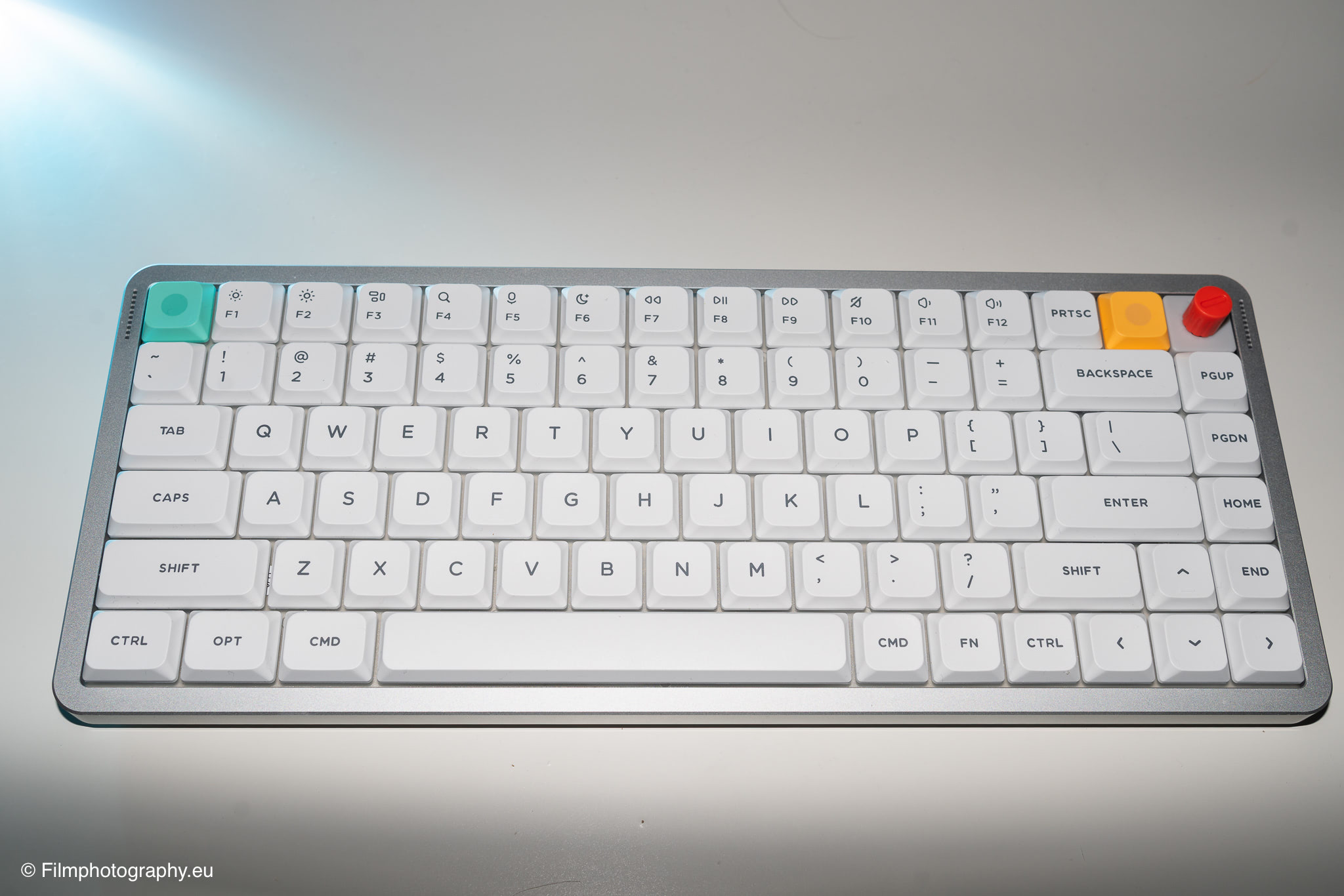
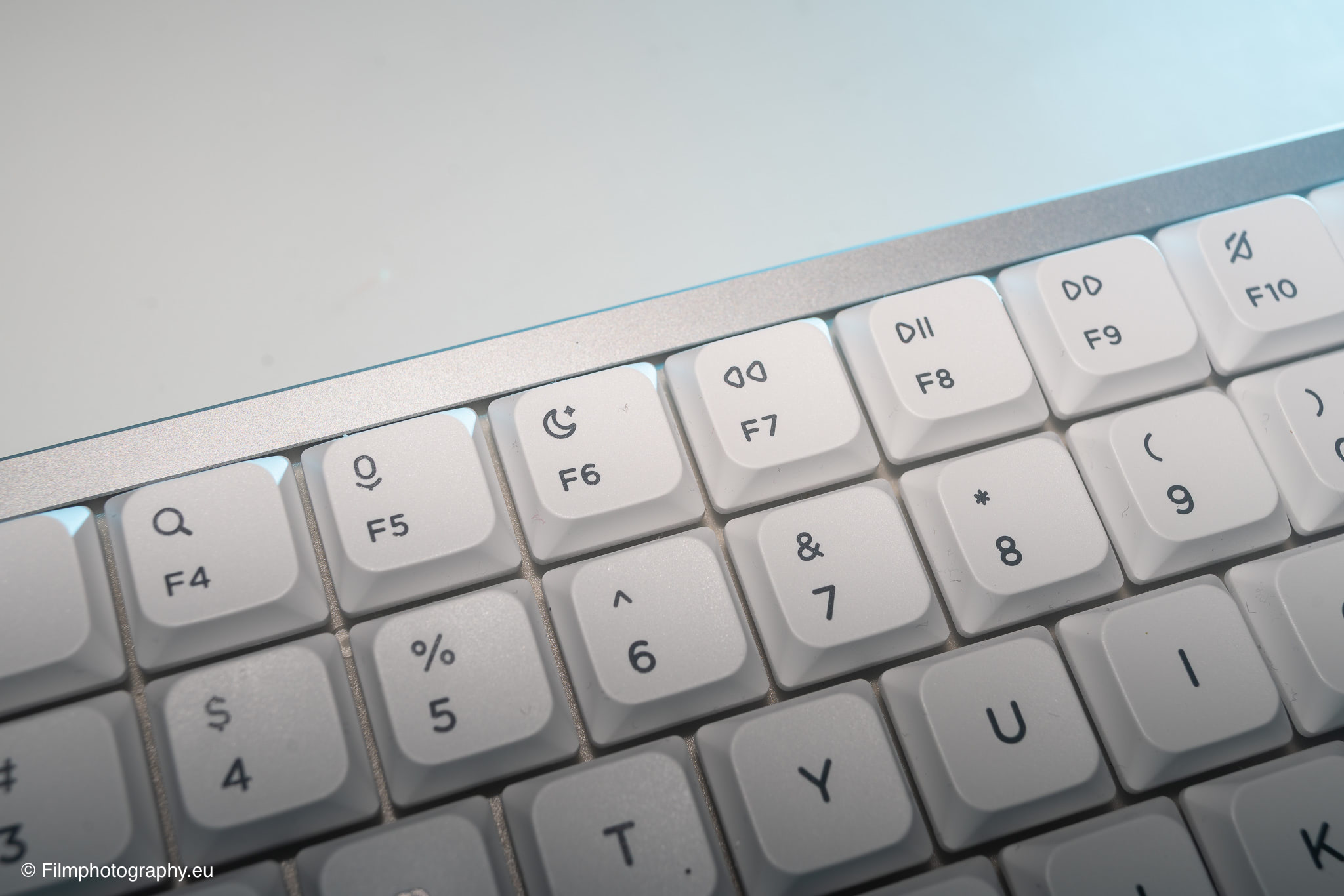
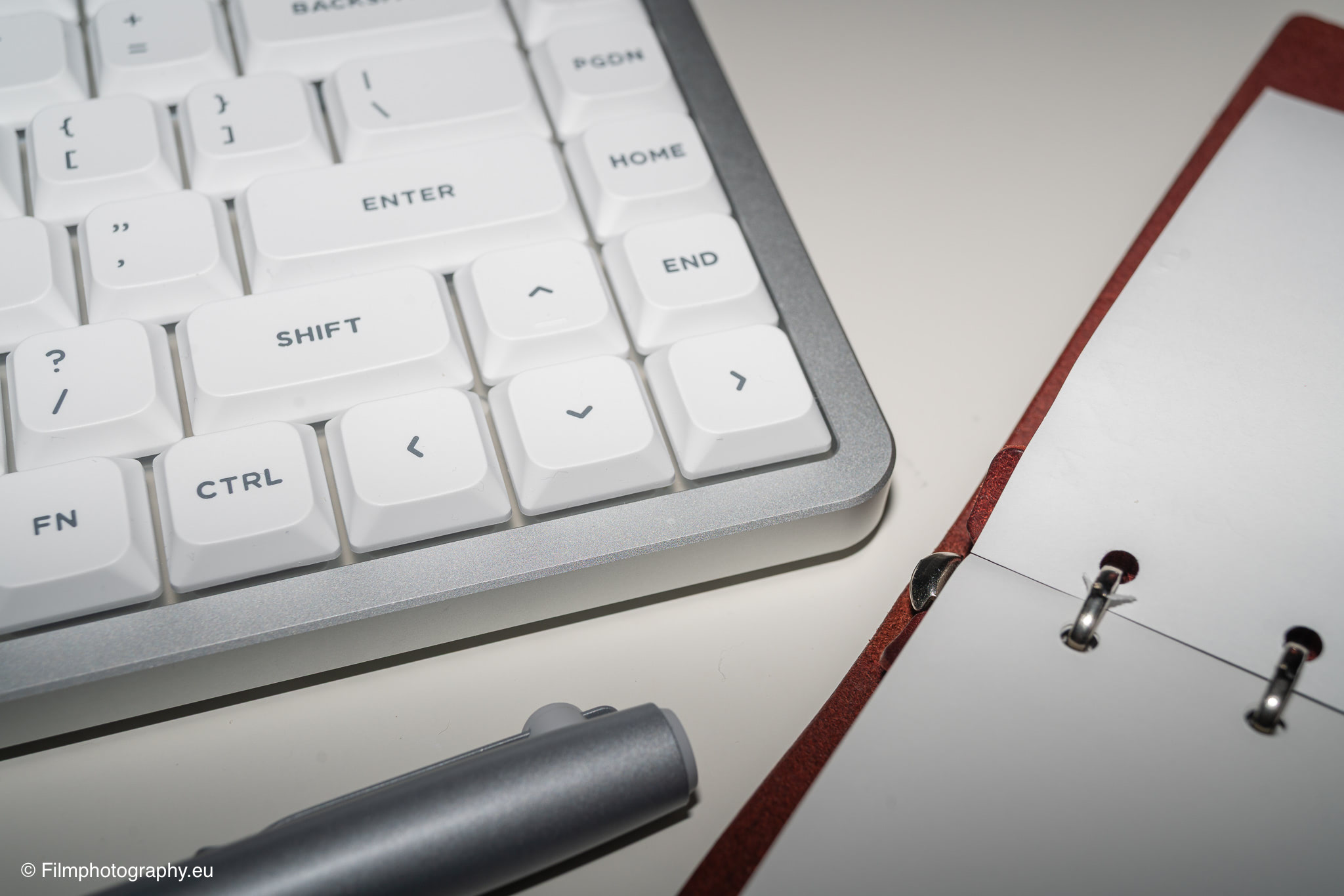
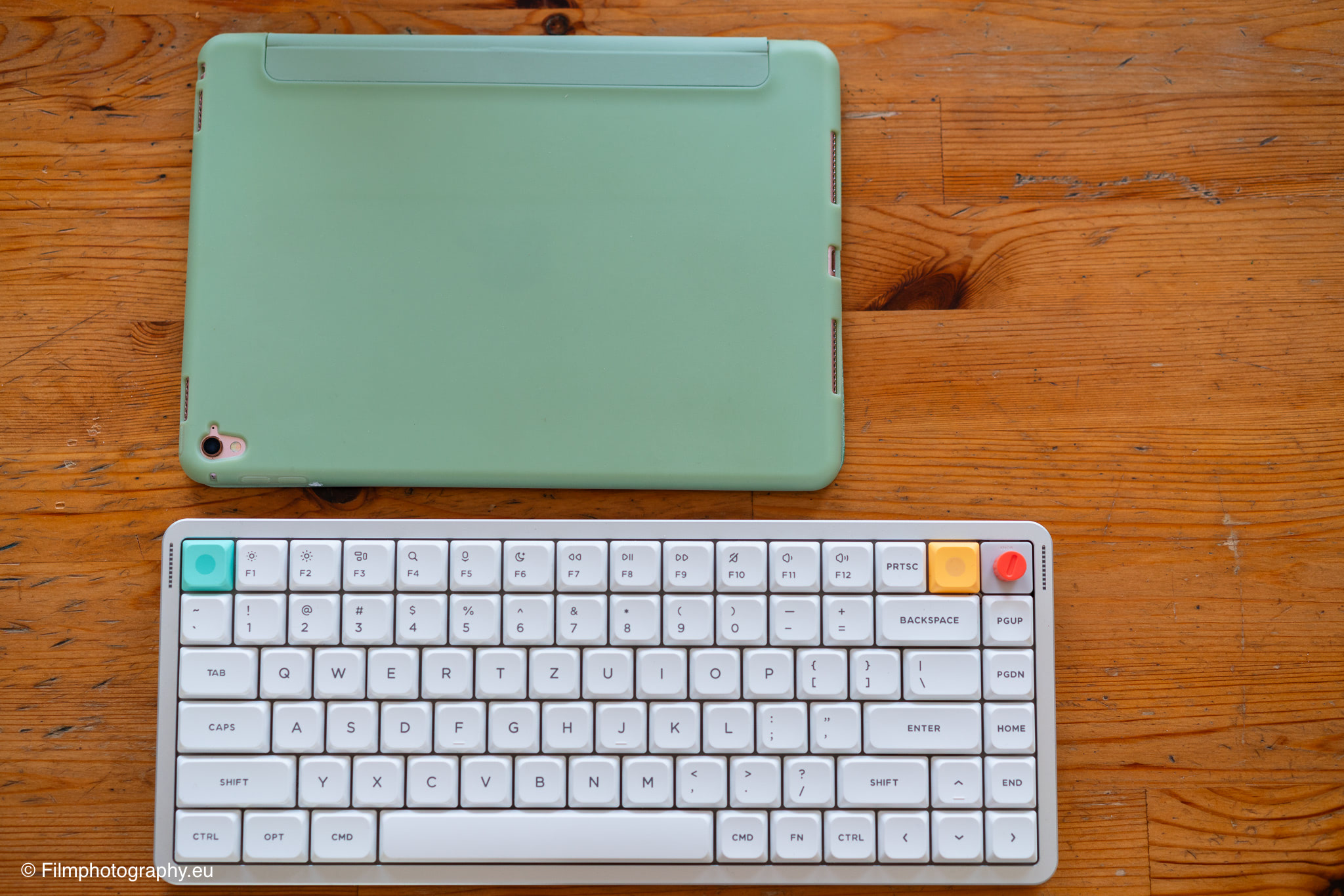
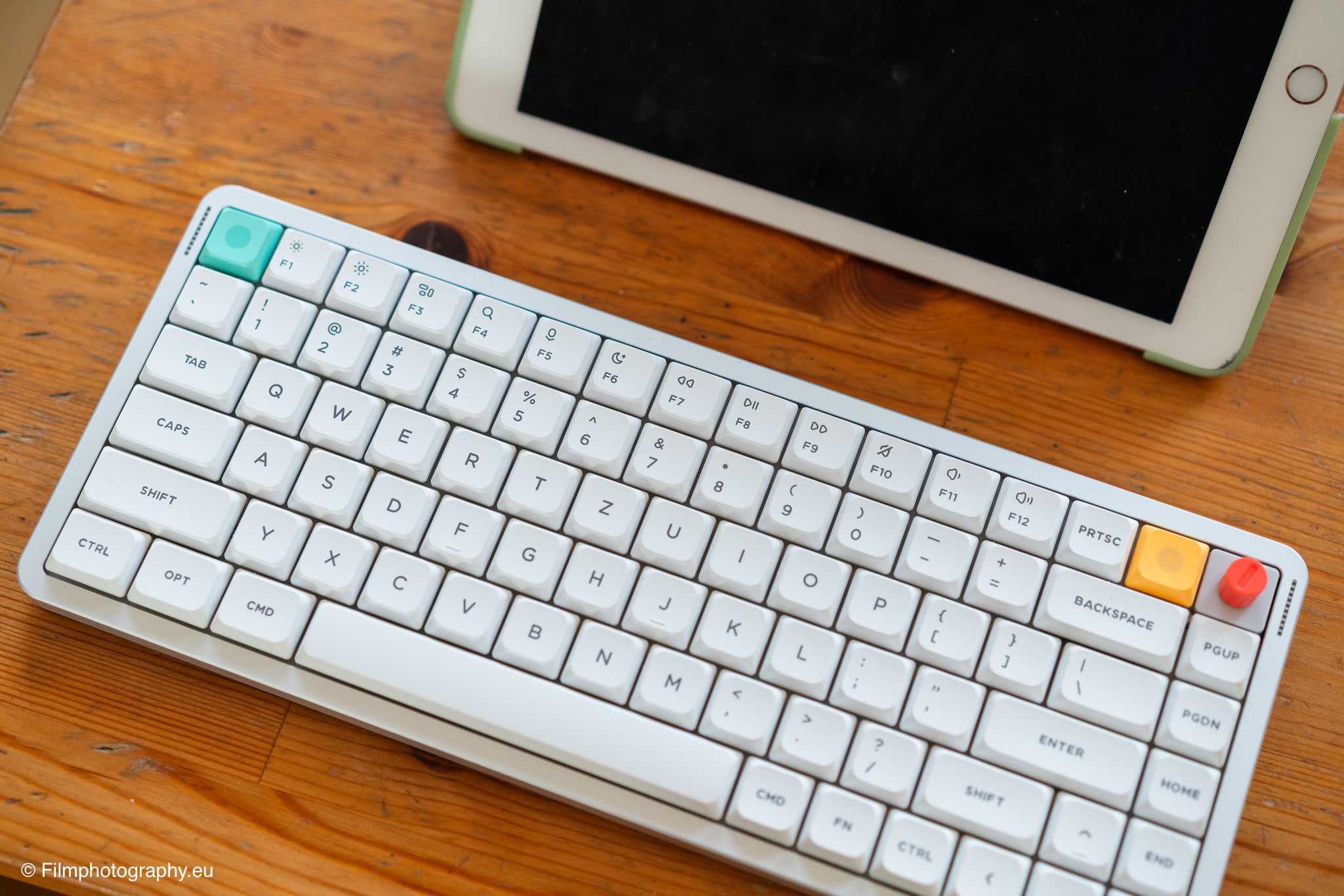
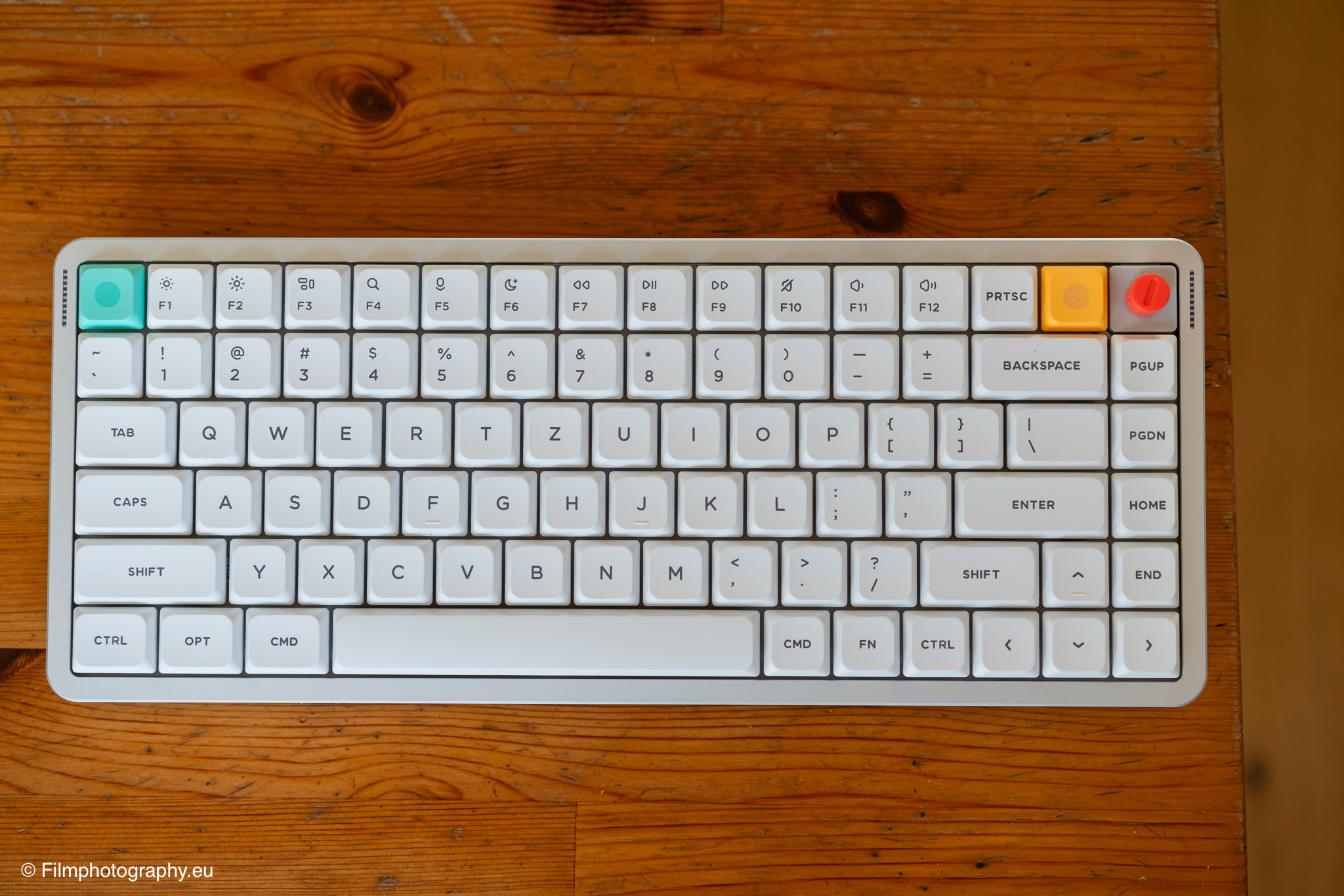
The model featured here is the third iteration in this product line, presented in the compact “75” form factor. This designation signifies that the keyboard is designed to save space while still retaining a dedicated row for function keys—a feature that is particularly important for those working in creative professions.
For someone like me, the experience of using such keyboards lies—if I think about it closely—an alarmingly long way back. The quality of the keyboards I used in those early days was probably on par with a poor-quality typewriter.
Since then, I have written almost exclusively on laptop keyboards, drafting countless articles for this site in that manner. Stepping into the world of a dedicated, mechanical tool is, therefore, an unfamiliar yet exciting step.
Technical Specifications
Let’s take a look at the physical and internal characteristics of the device. The Air V3 weighs just over seven hundred grams (724 g), making it slightly heavier than its predecessor (598 g). This additional weight is no coincidence, as the manufacturer has incorporated a thicker silicone cushion inside the housing. The purpose of this cushion is to minimize distracting hollow sounds while typing.
Another technical detail is the construction, which is now based on a so-called “gasket mount” design. This means that the internal plate flexes slightly while typing, resulting in a softer and smoother typing feel.
The battery capacity stands at 4,000 milliamp-hours. According to the manufacturer, this should provide many hours of operating time—provided you forgo the active backlighting. Over roughly two weeks of use, I did not need to recharge the device. Naturally, the relatively short charging time is another added benefit.
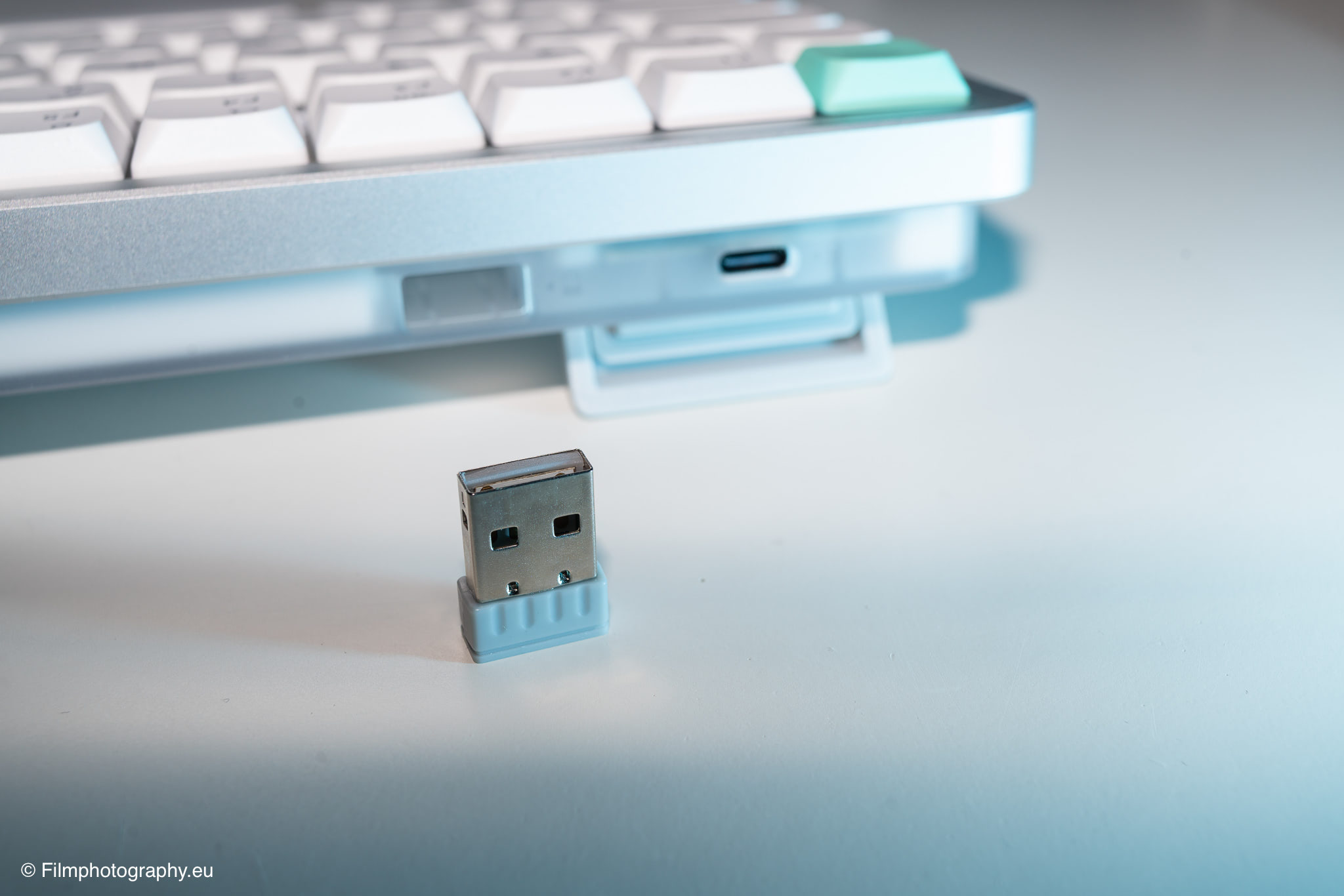
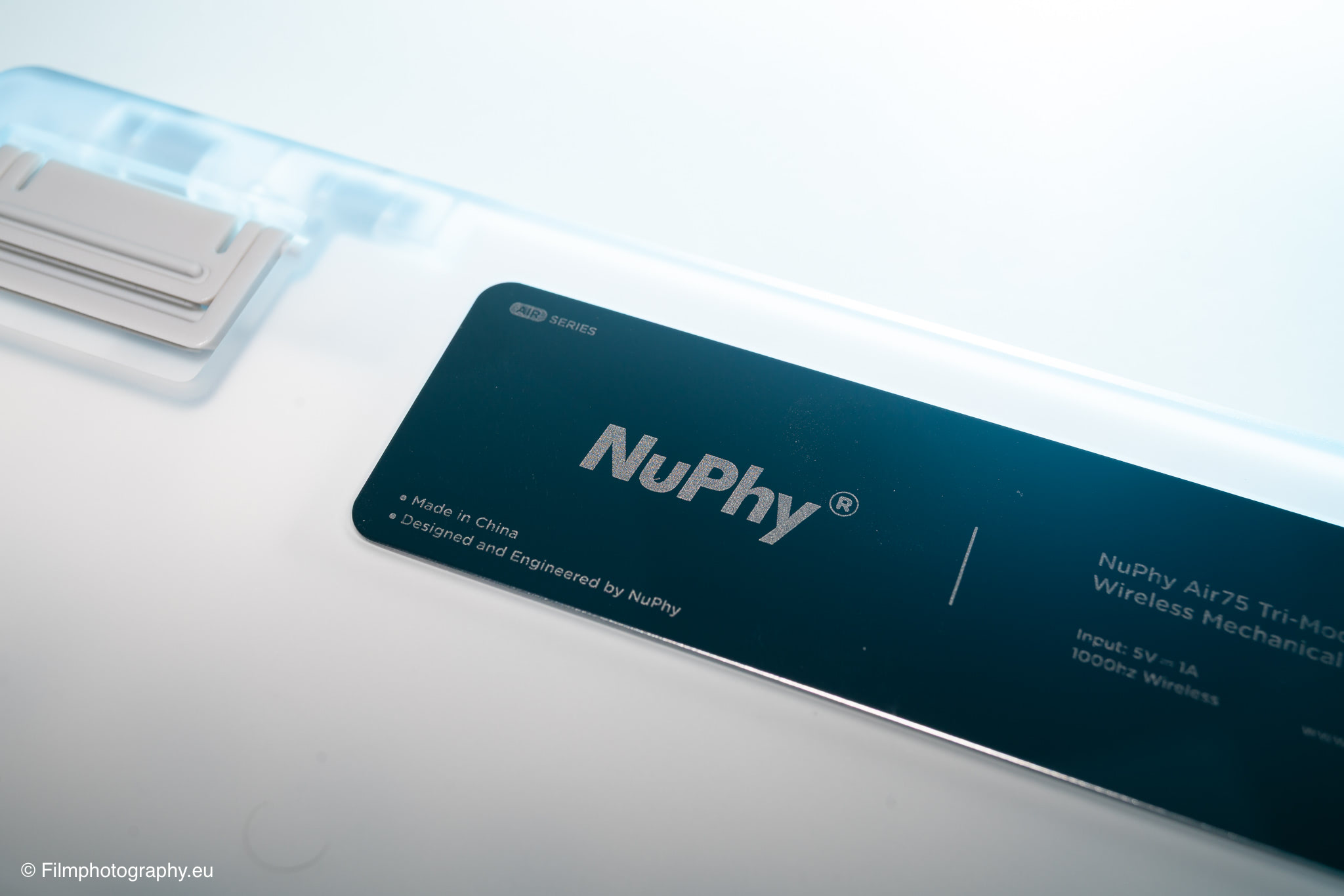
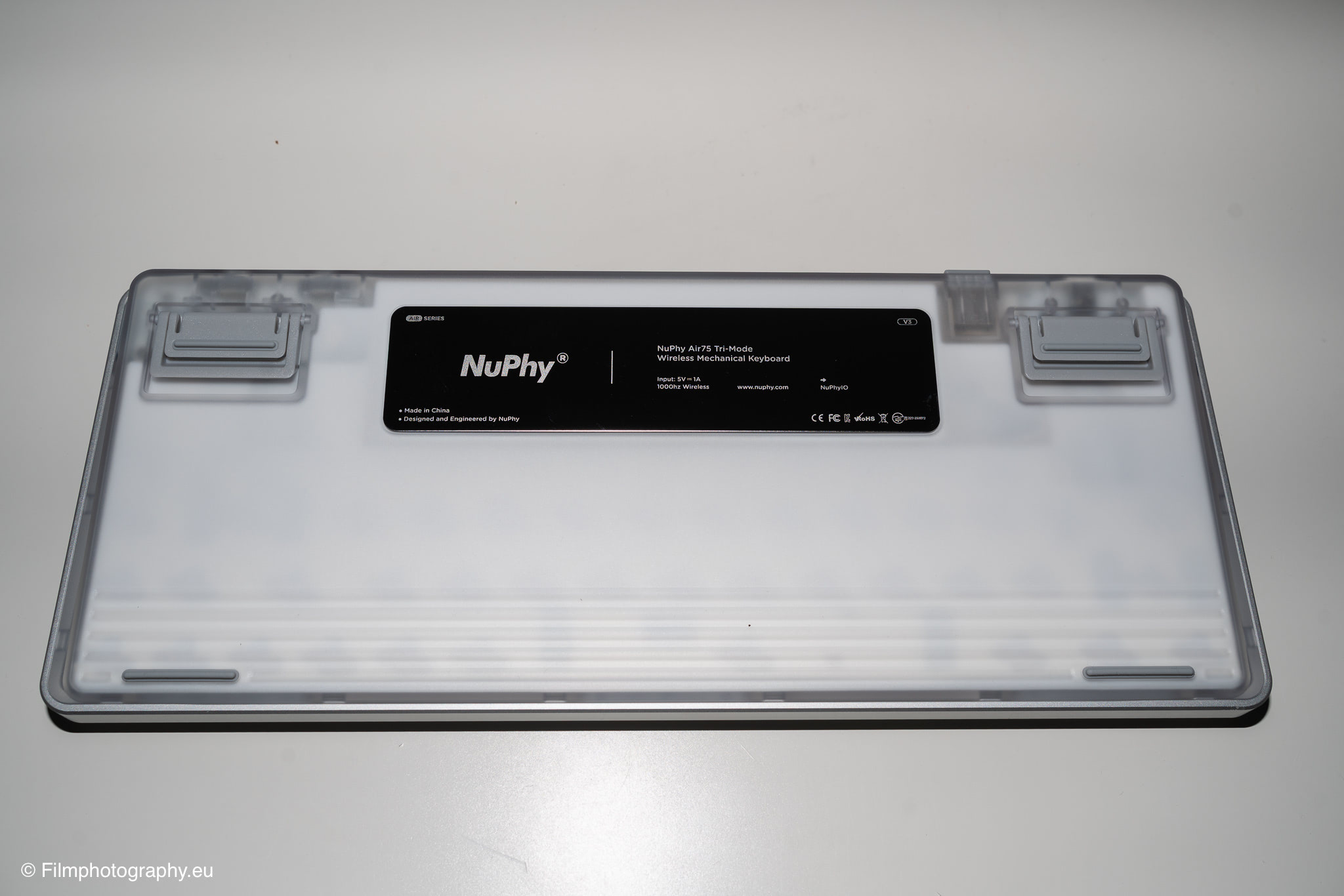
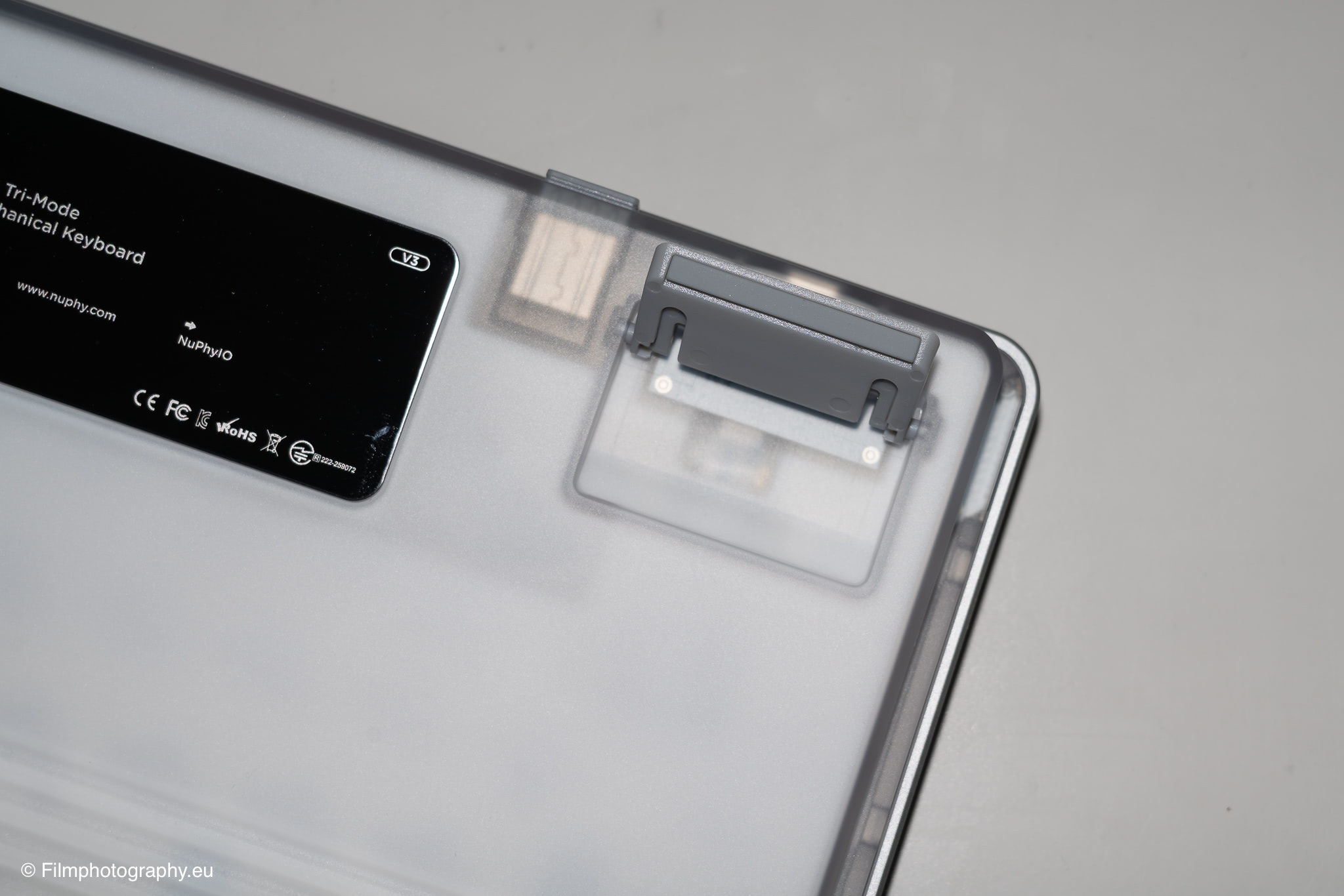
A particularly practical feature is a small, hidden compartment on the back of the unit, where the wireless receiver can be securely stowed away. This receiver is required for the 2.4 GHz wireless connection; however, the keyboard can also be connected to a computer via cable or Bluetooth.
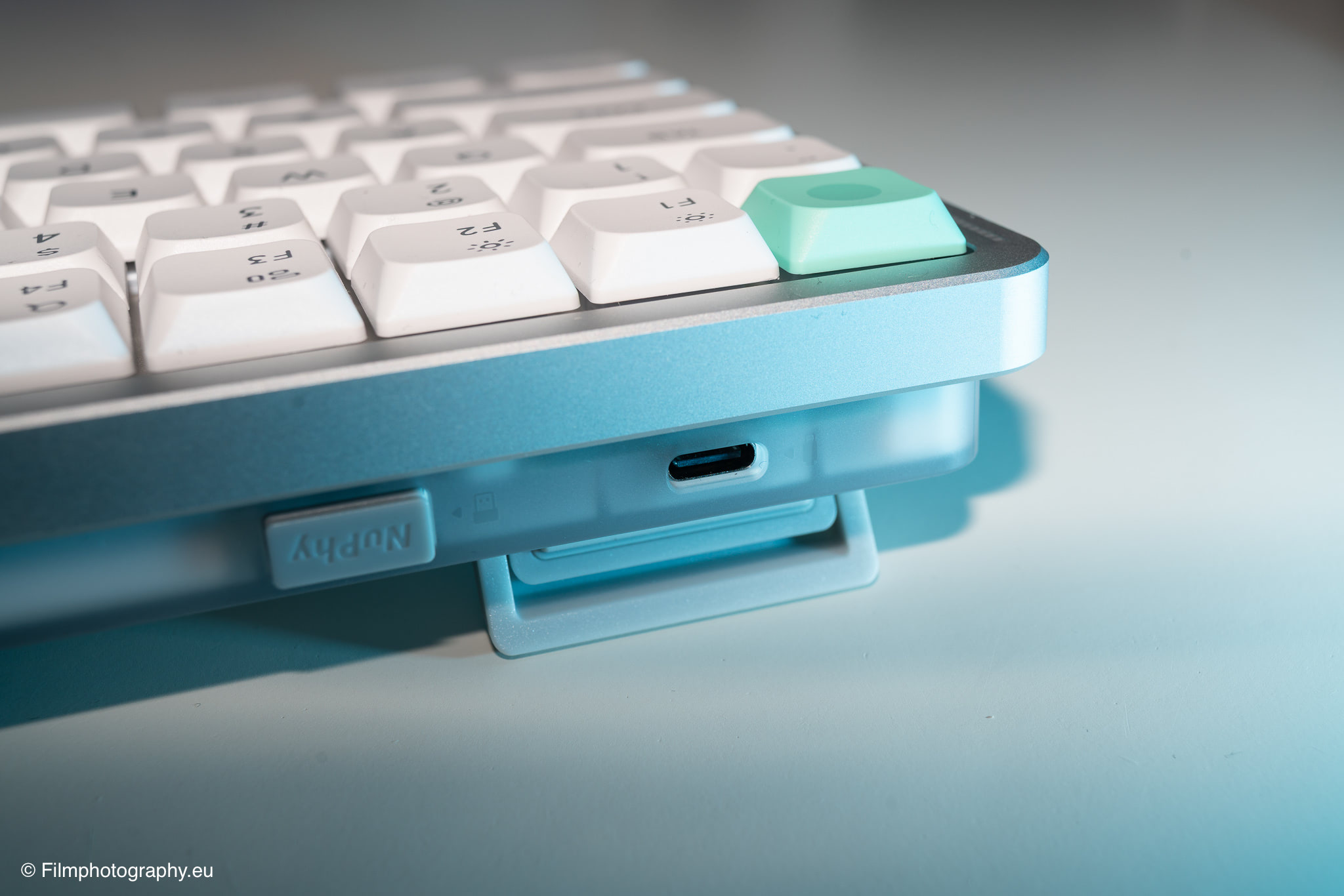
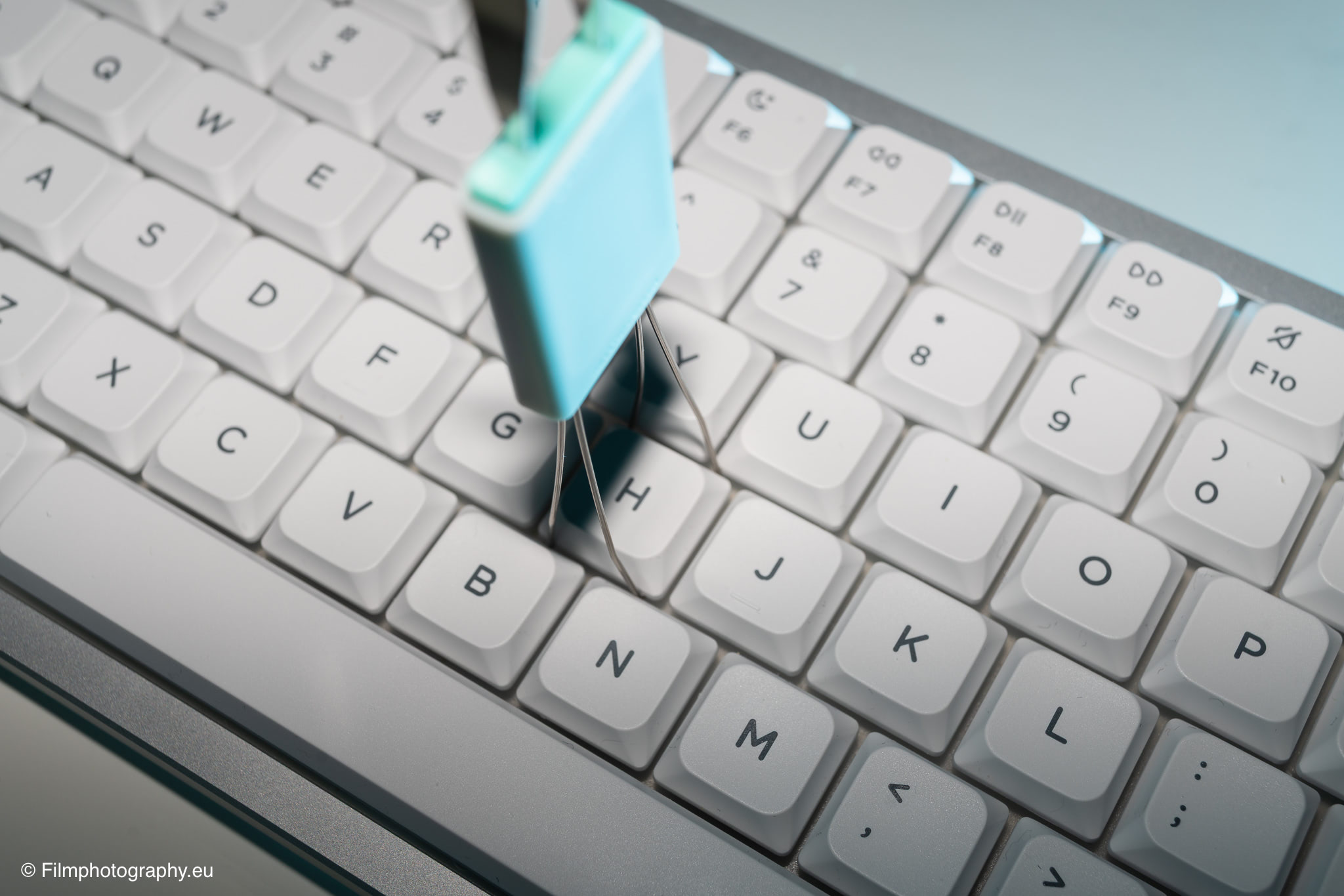
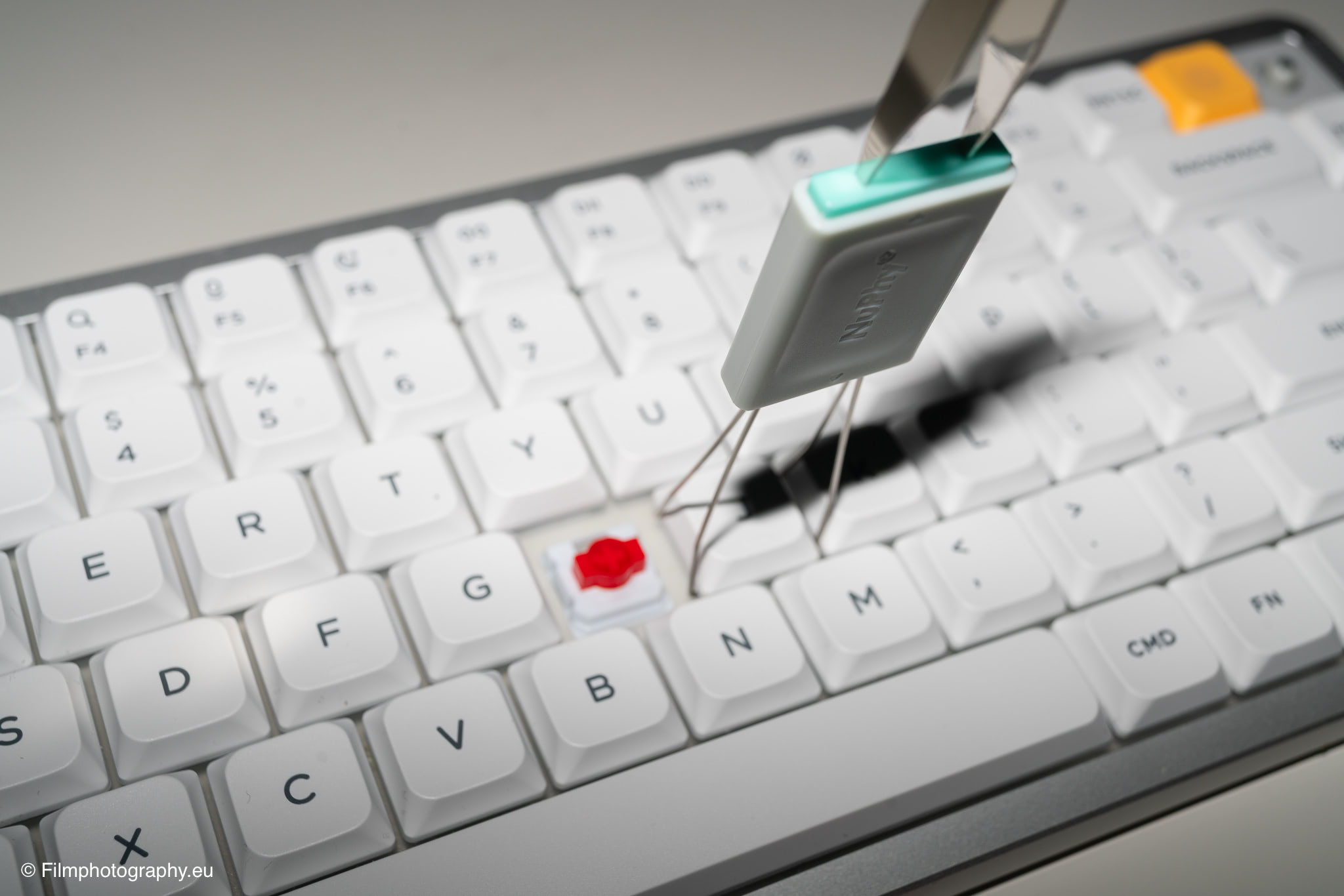
The housing itself consists of a combination of aluminum and plastic. In my case, Red Nano Switches are used. These offer a linear typing feel without any perceptible mechanical click resistance. They are crafted from a special plastic that produces a deep, pleasantly muted typing sound. Those who prefer an even quieter experience could opt for alternative switches designed for silent environments.
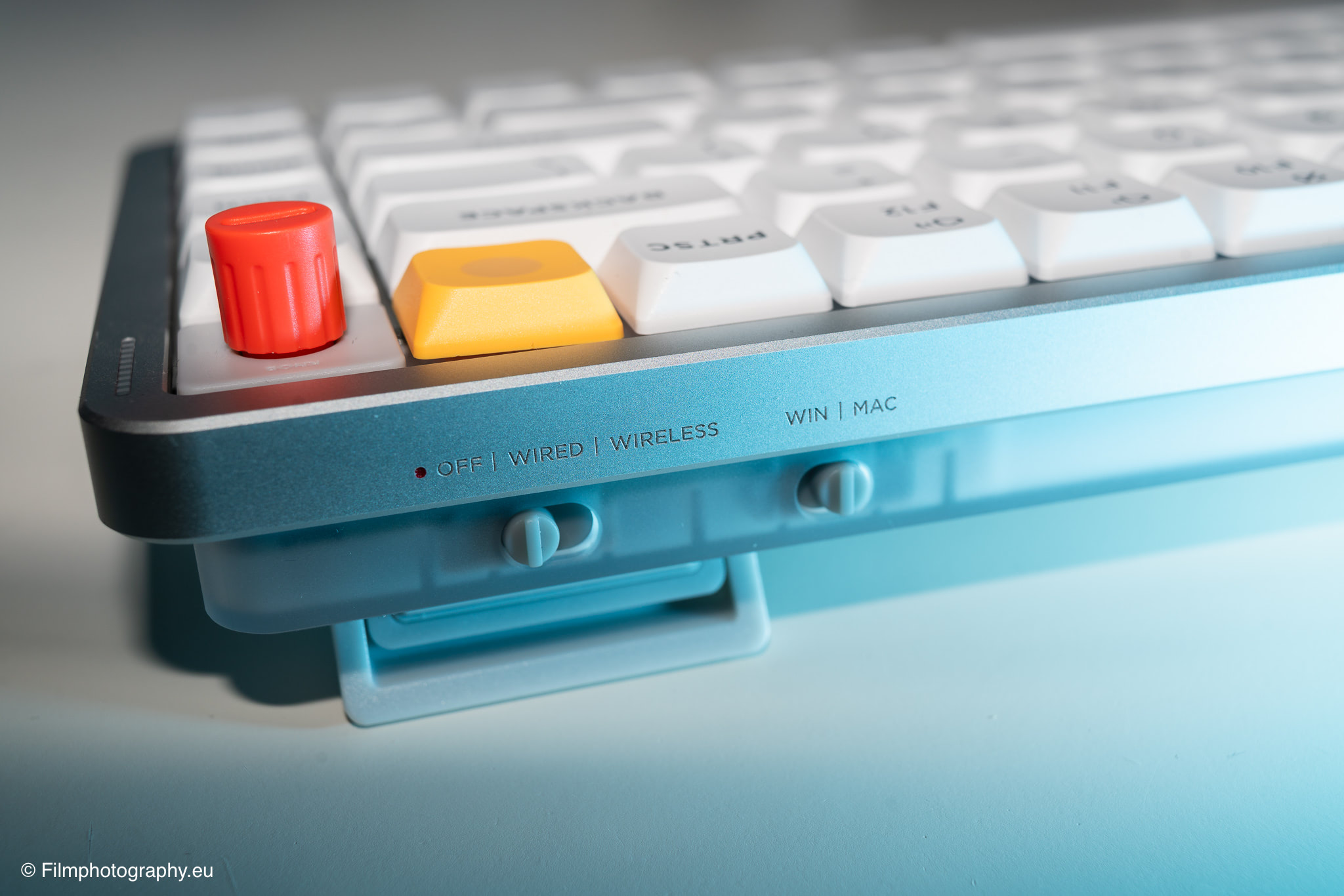
The physical slider switches located along the top edge are also a useful feature. These allow you to switch seamlessly between Windows and Mac modes, as well as between a wired connection, Bluetooth, and the wireless receiver. A separate switch is used to turn the keyboard on and off.
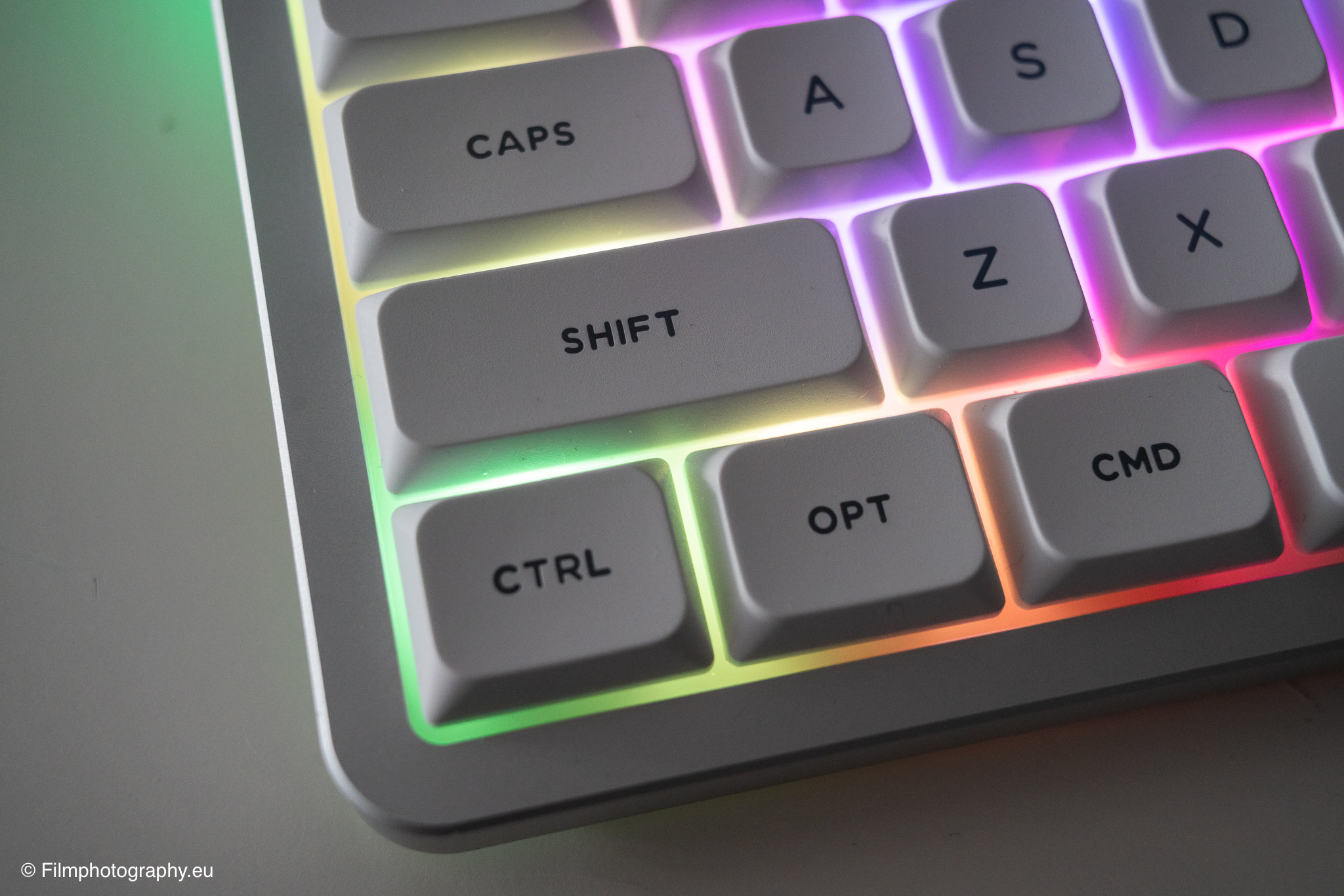
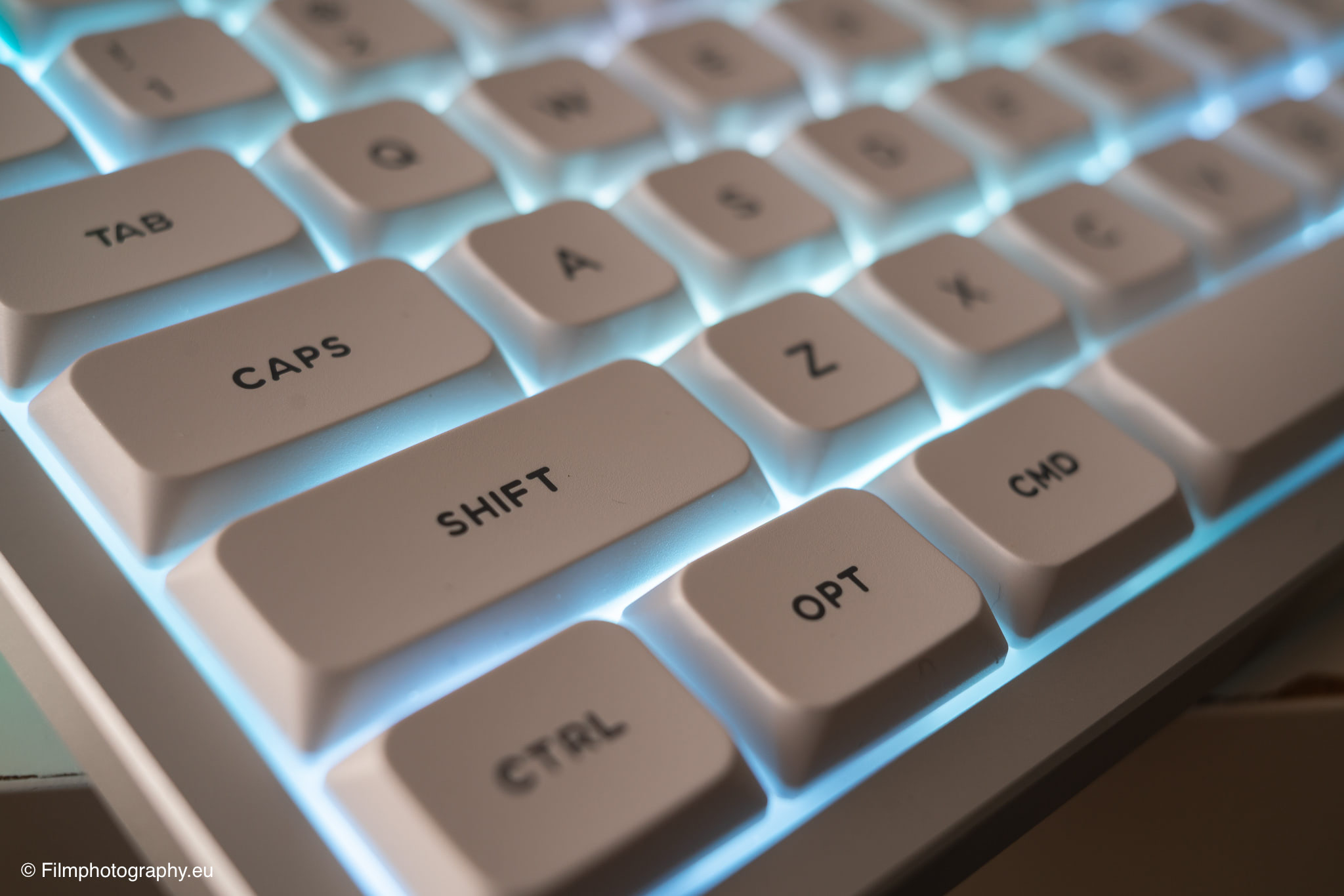
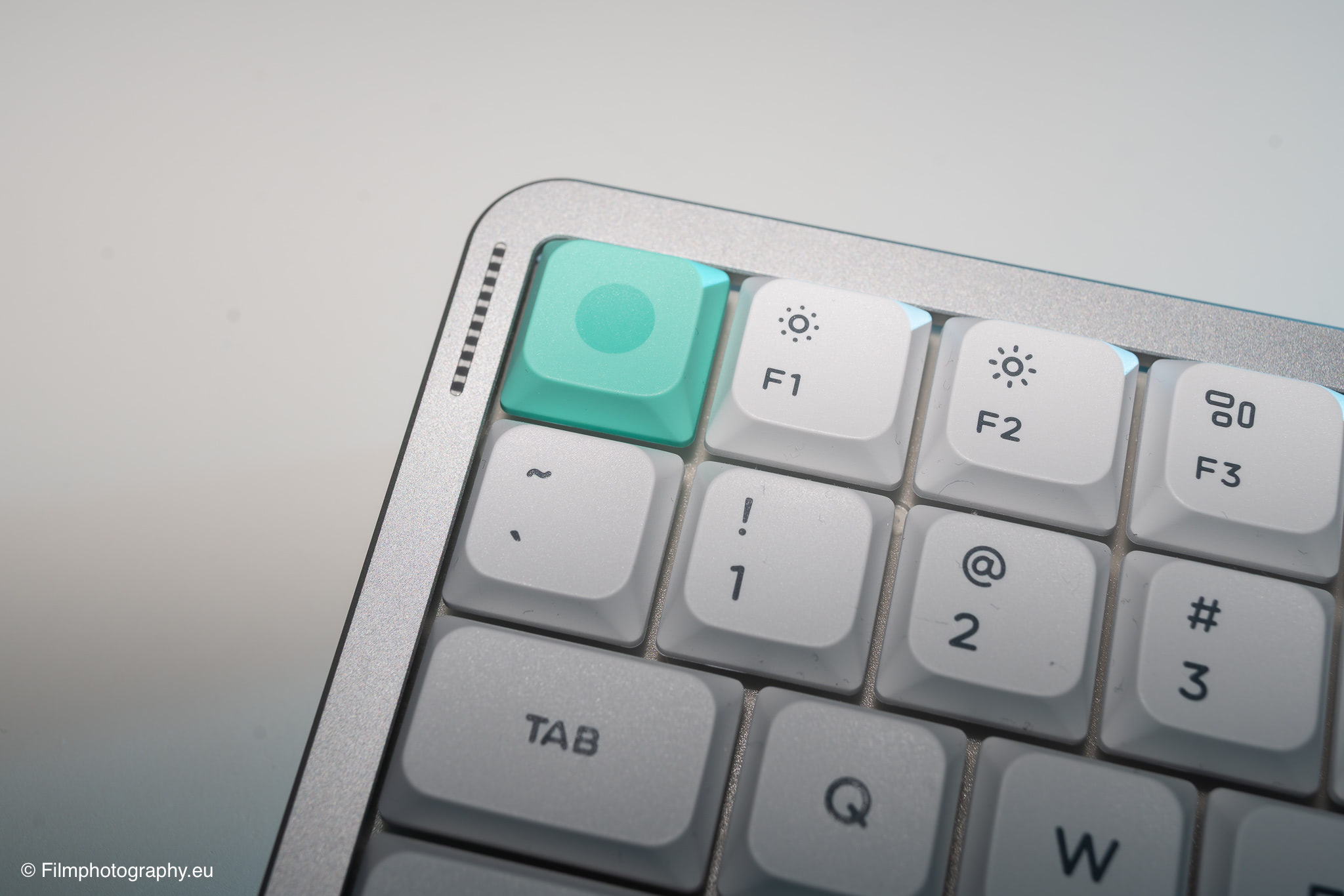
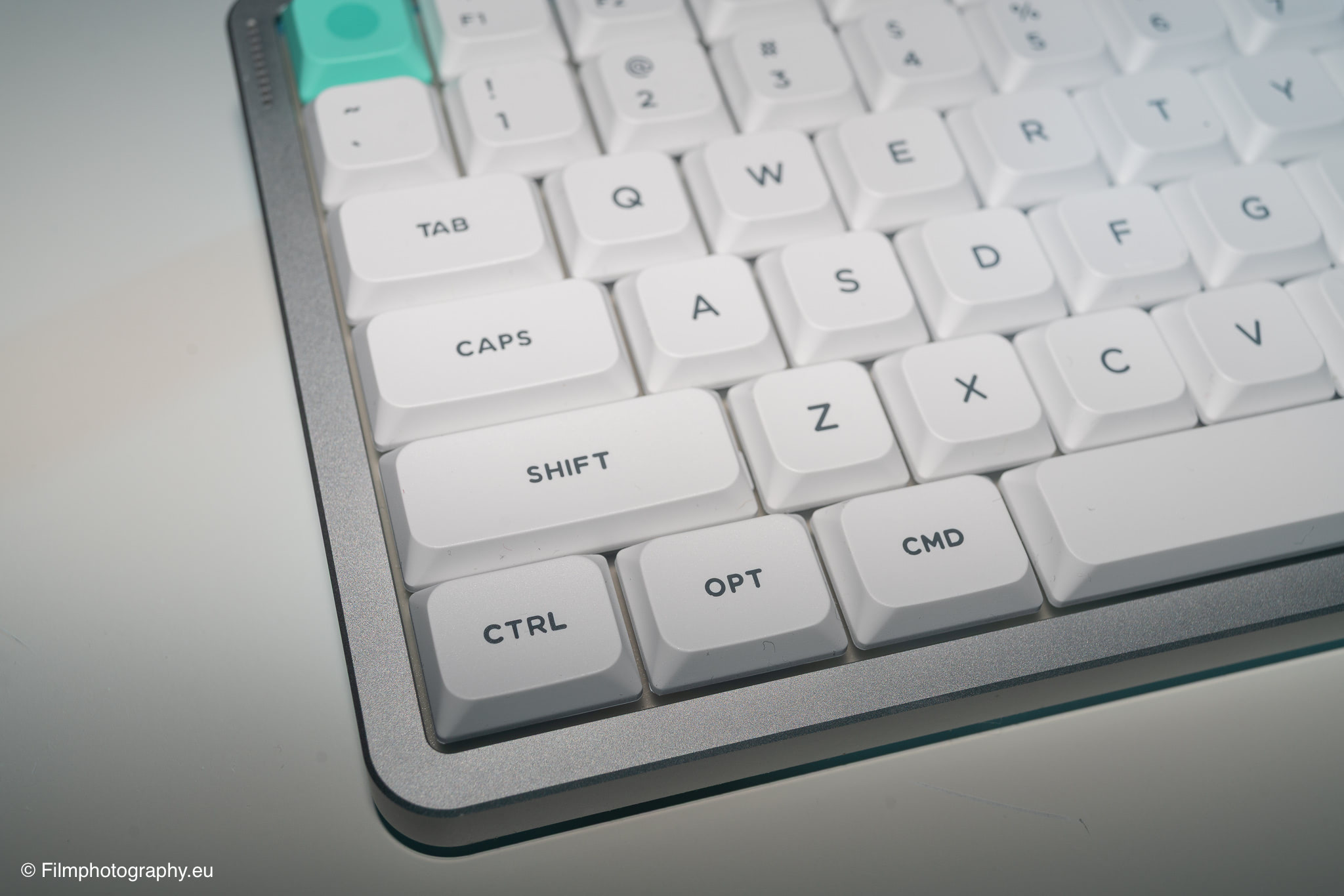
In terms of color options, you can choose between Nova White and Nebula Dark. My review unit is—unmistakably—the Nova White variant. The keyboard features very high-quality craftsmanship and looks excellent as well.
In Practice
Switching over from a low-profile MacBook keyboard feels quite unfamiliar at first. This applies whether you consider the longer key travel, the mechanical typing sounds, or simply the height of the device sitting on your desk. I found myself struggling a bit, particularly during my initial attempts. When you have spent a long time typing on a specific keyboard, the movements become ingrained in your muscle memory; you know instinctively—without even looking—exactly where the keys are located and how to strike them. Consequently, it takes a few days for your fingers to adjust to the new layout and topography.
Fortunately, setting up the keyboard via Bluetooth on a Mac proved to be a completely hassle-free process. You also have the option to pair the keyboard with more than one device.
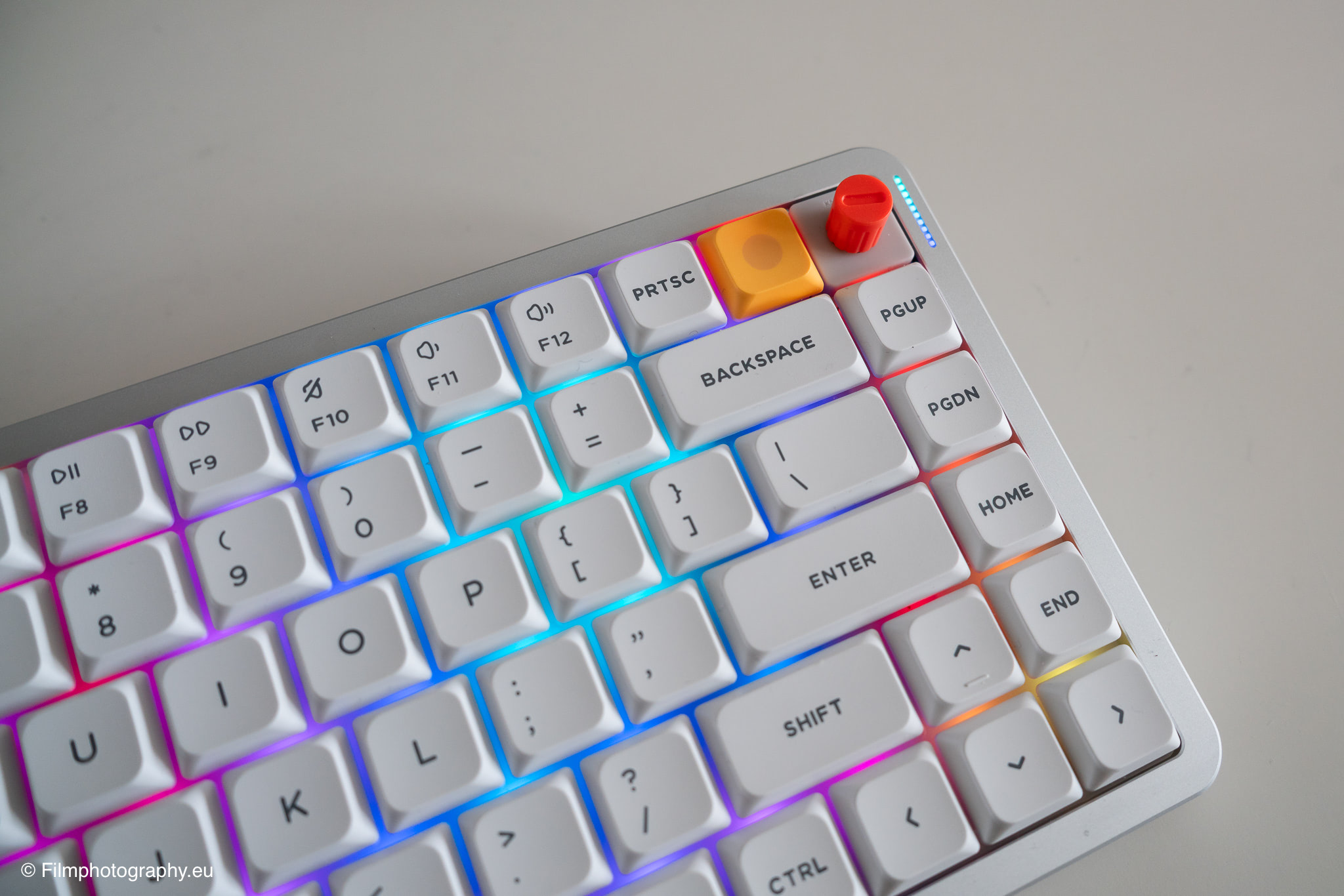
When typing, the keyboard sits firmly on the desk. Nothing wobbles or shifts—a stability aided by the aforementioned heavier weight as well as the rubberized feet. Small indentations on the underside of the housing also make it easier to grip the device comfortably and slide it around on the desk. Overall, the keyboard has a very premium feel.
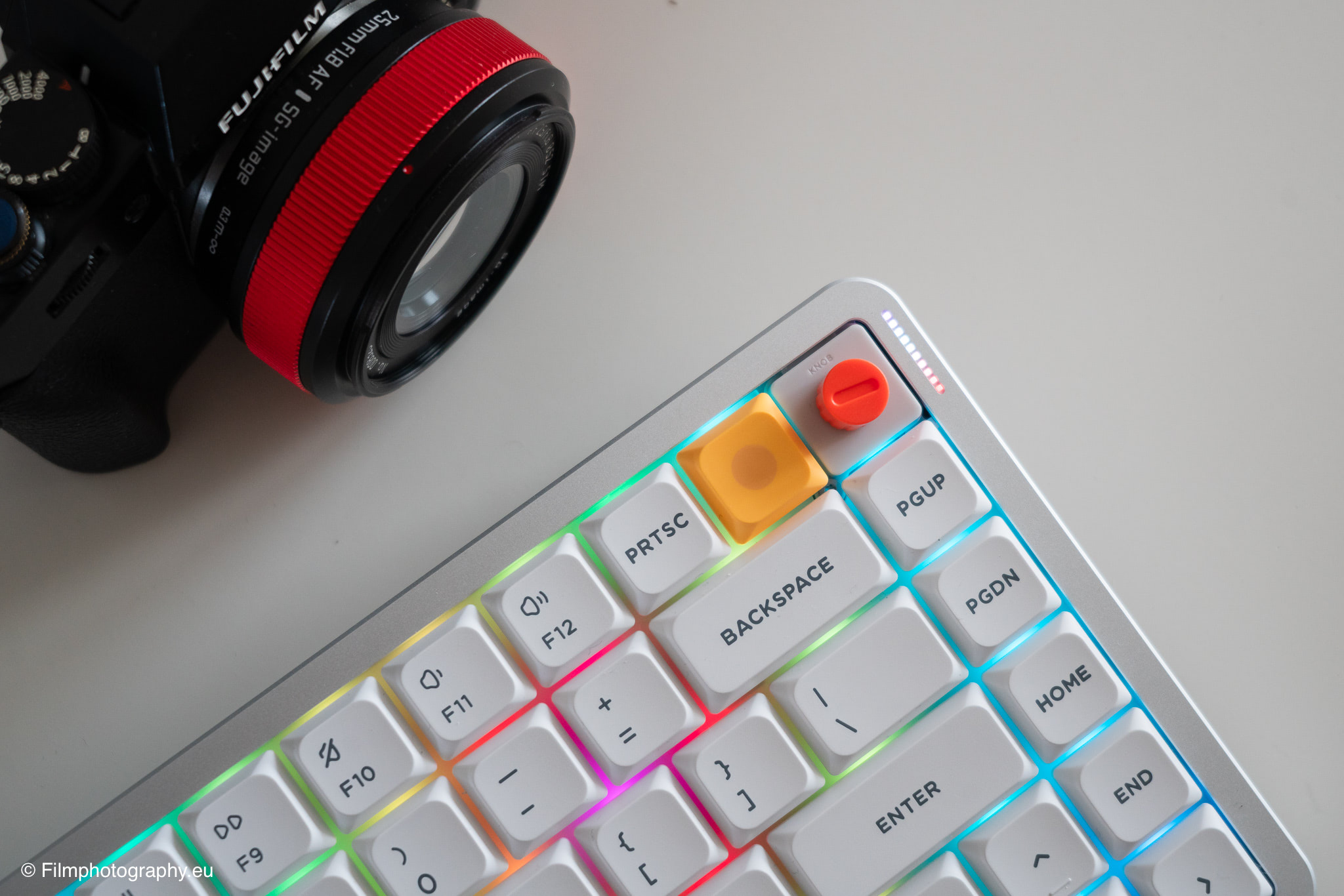
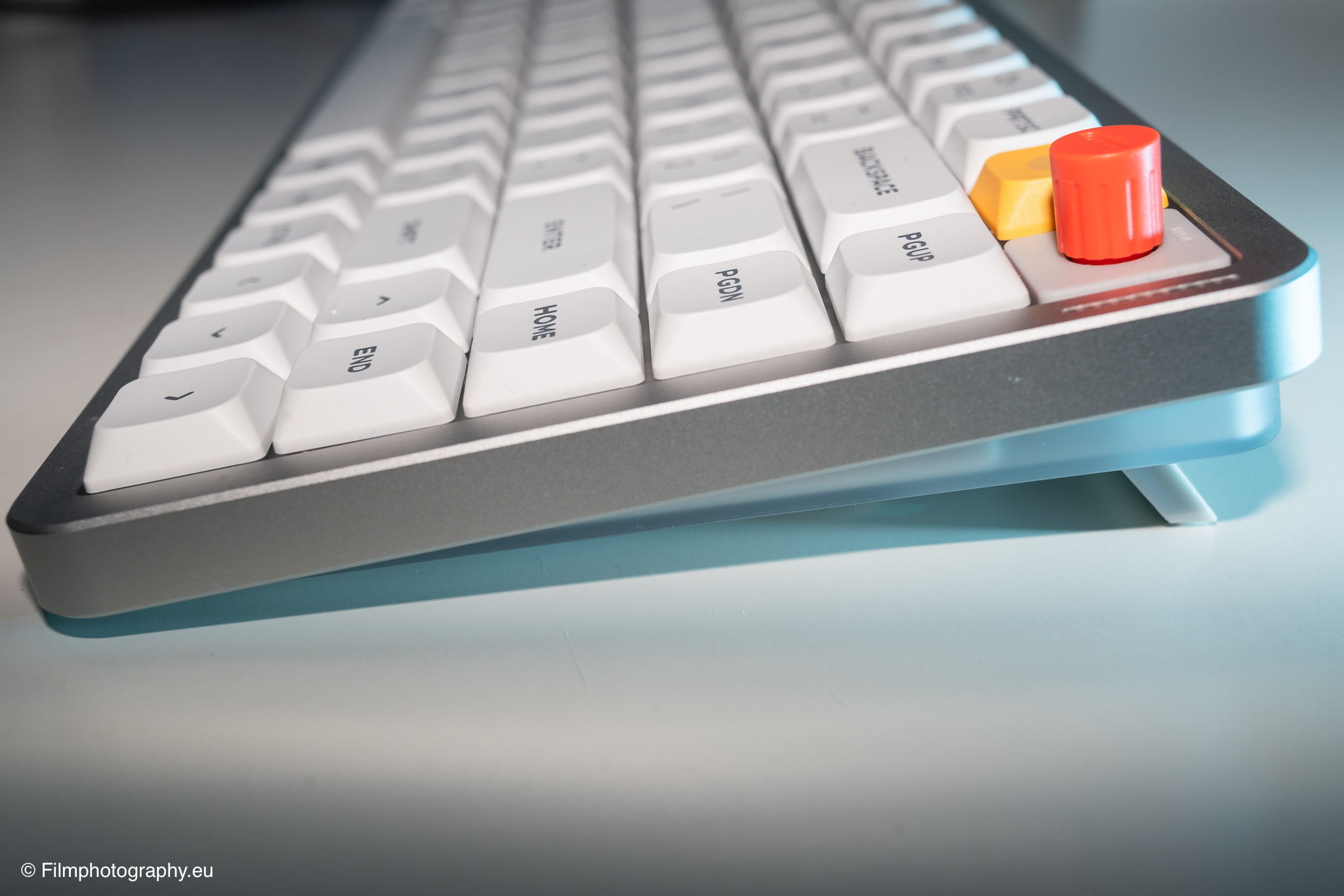
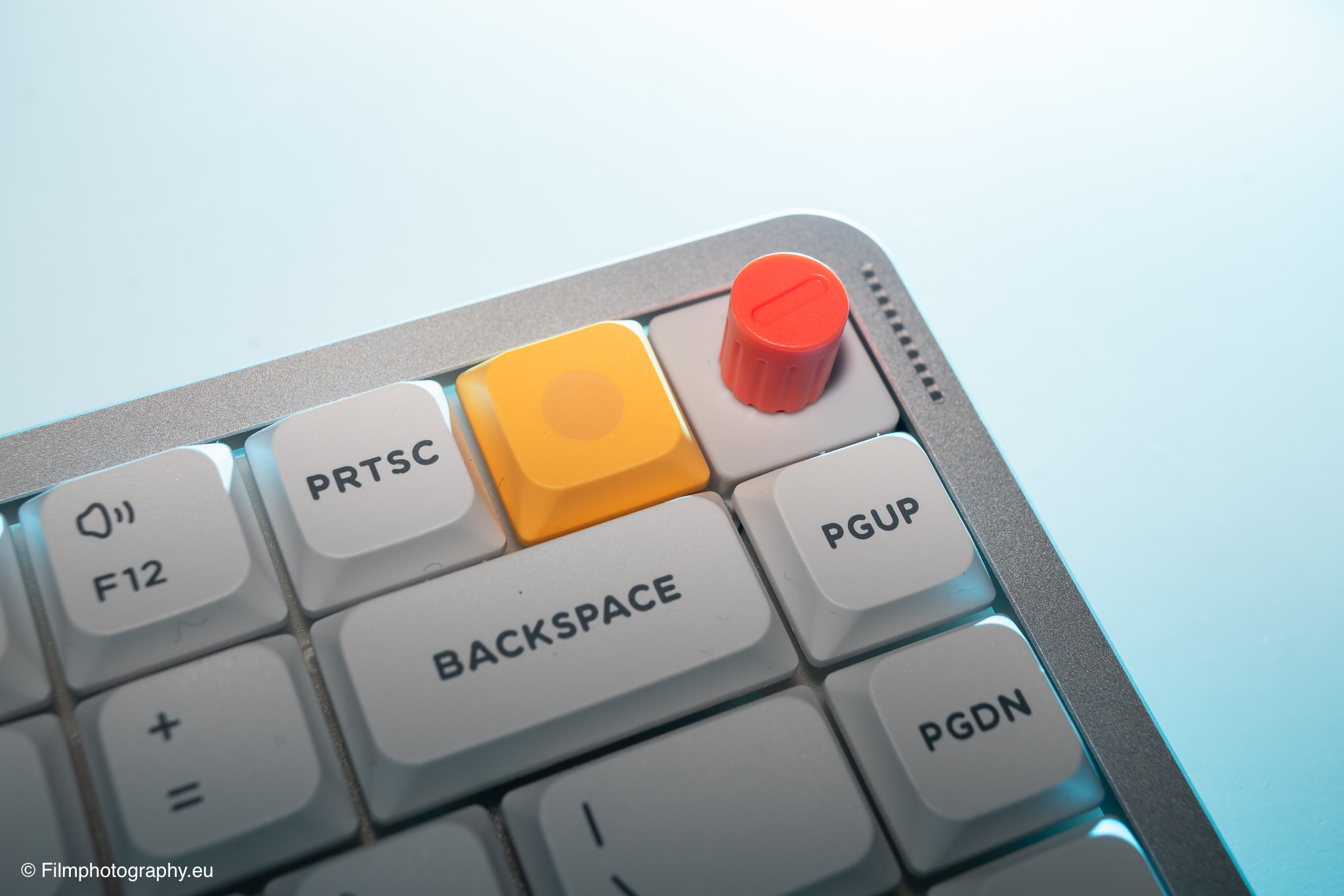
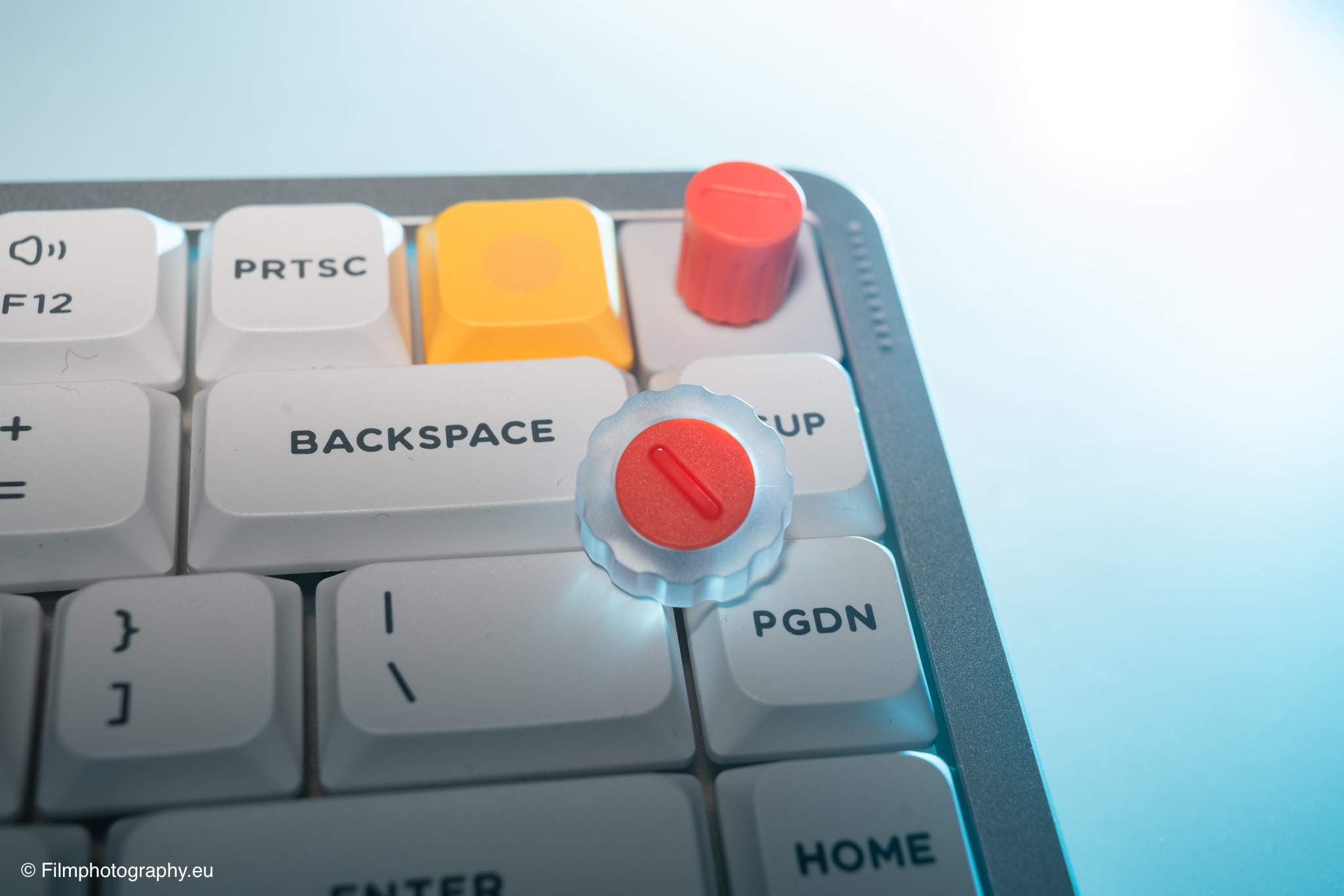
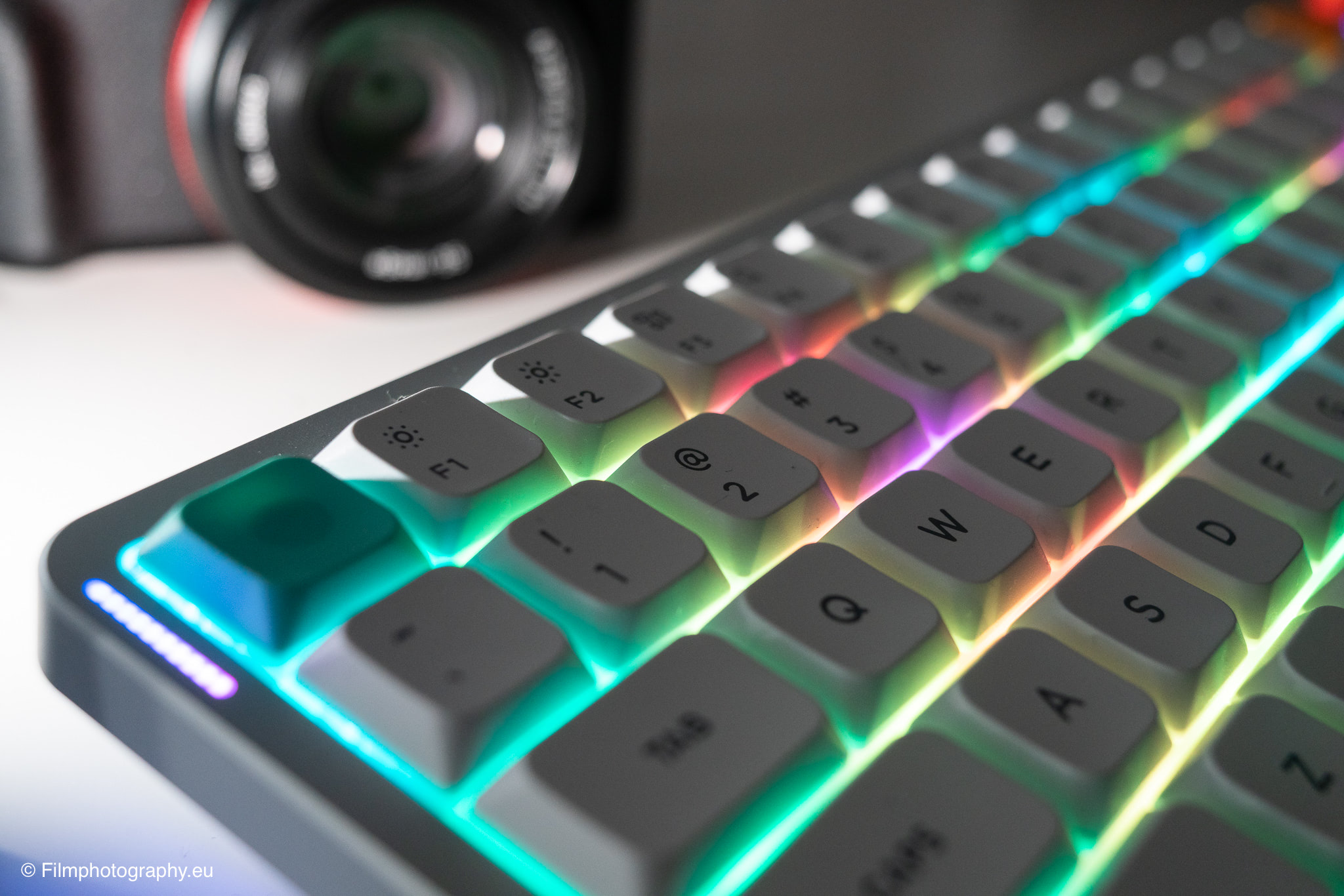
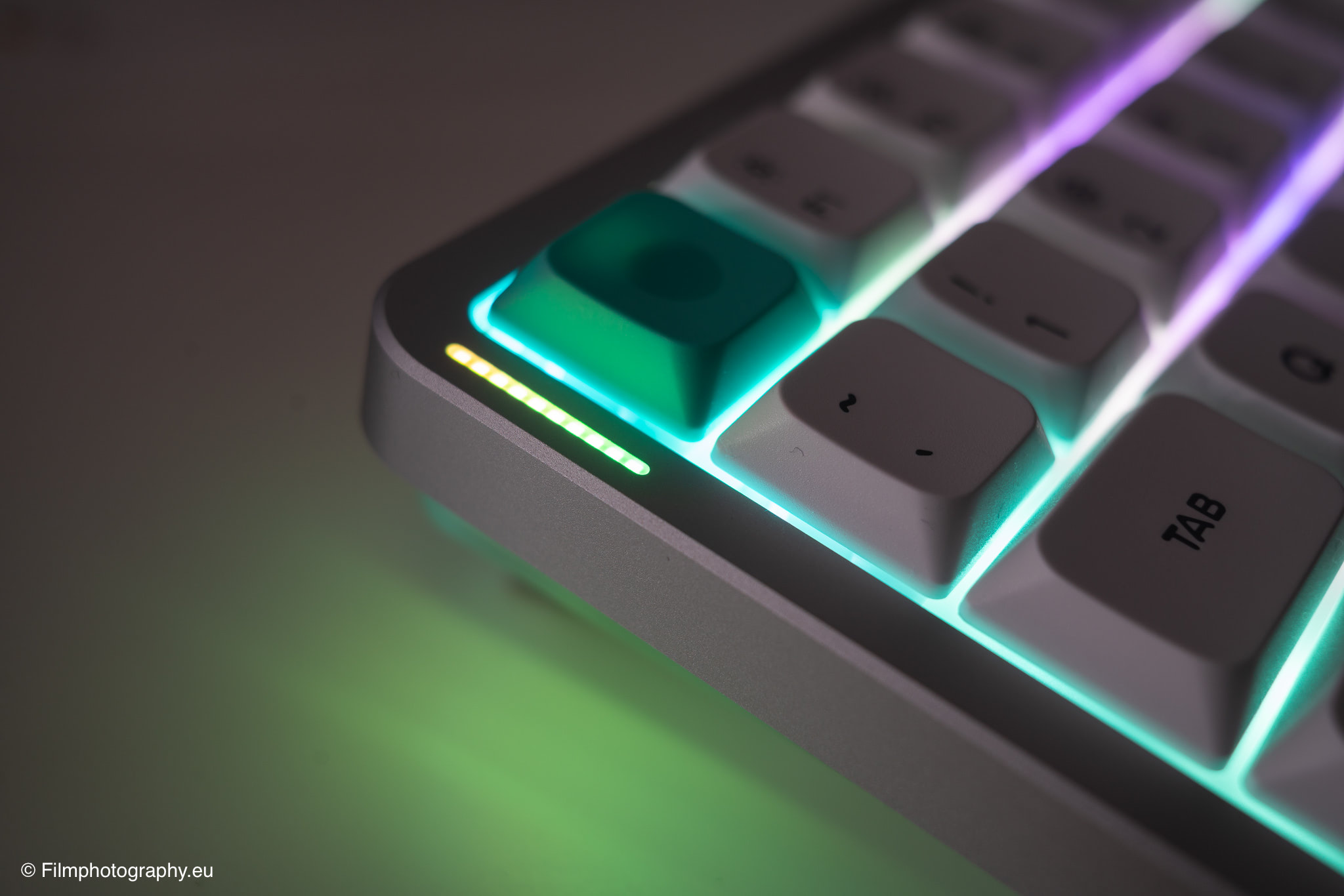
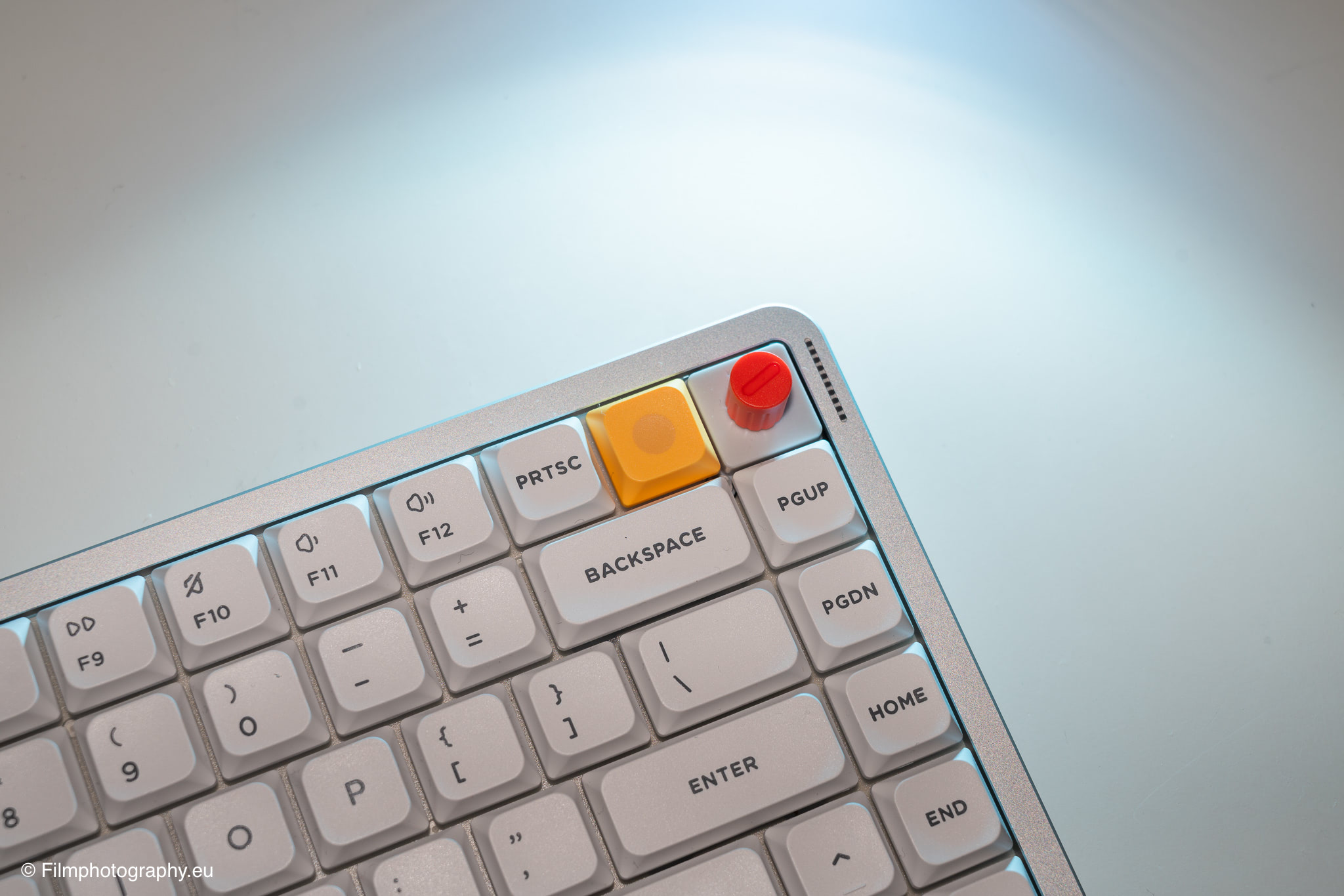
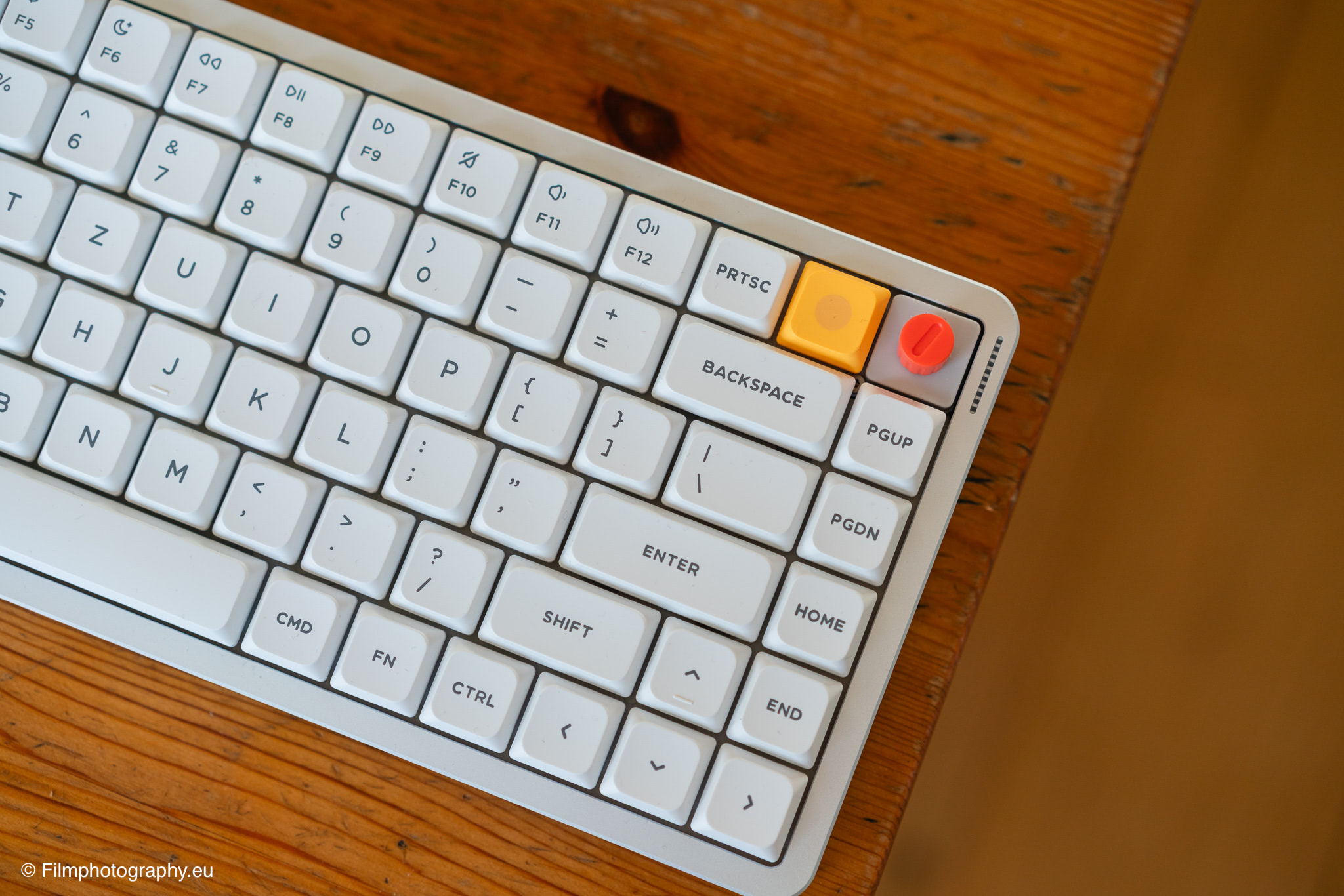
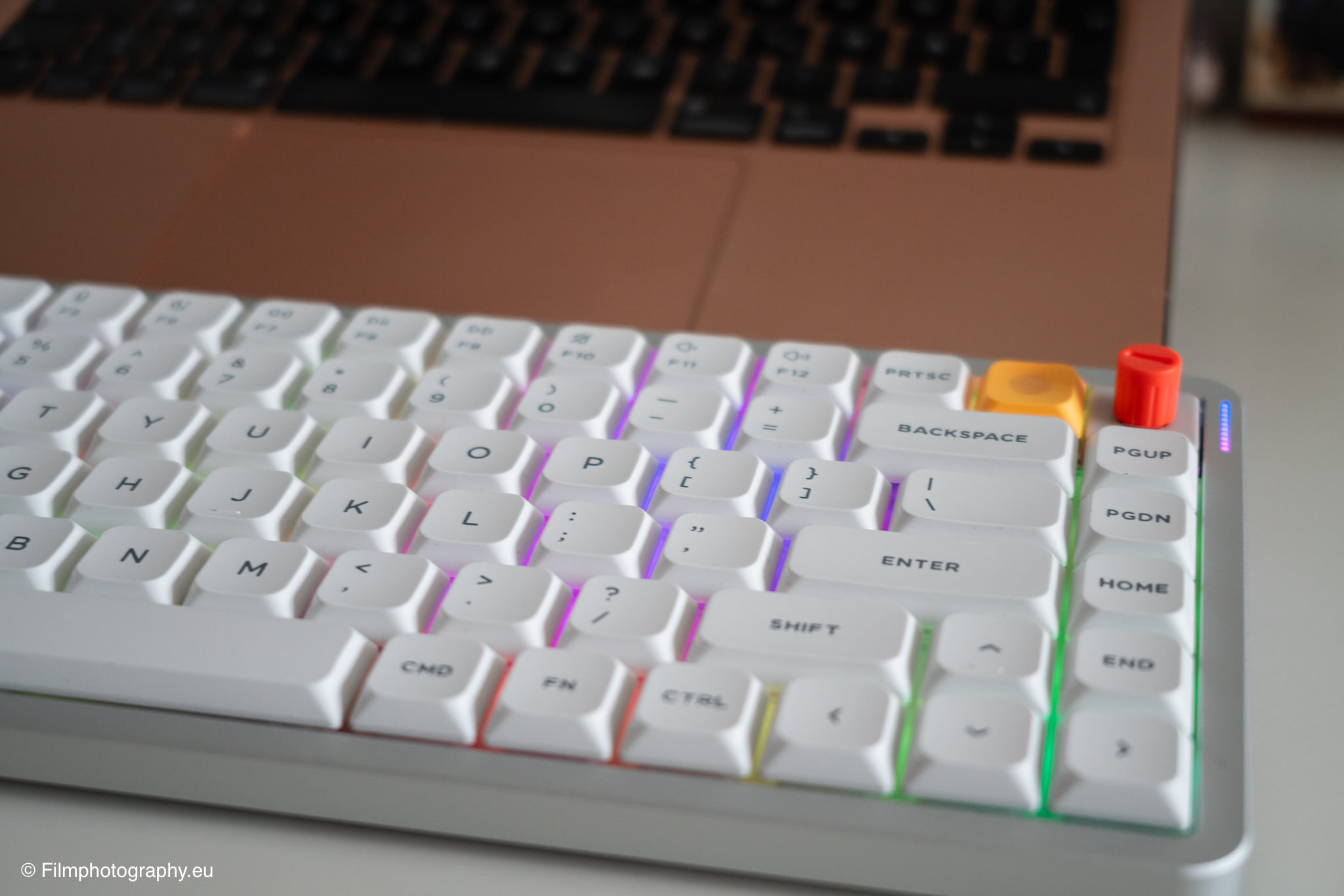
An interesting extra feature is the rotary knob located in the top right corner. There are two different types available to choose from; alternatively, you can opt for a standard key instead. Swapping them out is relatively simple—just like replacing the standard keys.
You simply need to remove the surrounding keys and loosen a small screw, then insert the rotary knob. The knob is fully programmable; by default, it controls the computer’s volume. It can also be pressed down—for instance, to pause music playback.
The NUPHY.io platform allows you to configure a wide range of settings directly within your web browser. To access these options, you must connect the keyboard via USB-C.
The possibilities here are truly extensive. For instance, you can assign special functions to specific keys or map complex key combinations to a single keystroke. There are almost too many options—so much so that, initially, you might feel a bit overwhelmed and unsure of where to begin. A beginner’s guide would perhaps be a welcome addition here—perhaps a smart feature that prompts you about your specific needs and generates a basic profile accordingly.
This portal also allows you to download and install firmware updates, as well as configure settings such as when the keyboard enters standby mode.
Furthermore, it is possible to assign multiple functions to a single key. These functions can be triggered by a simple click, a double-click, or by holding the key down. How—and indeed whether—you choose to utilize these features in your daily routine is entirely a matter of personal preference.
This is the stage where you are most likely to observe yourself in your habitual routine and determine which key combinations would truly make sense. For instance, which complex key sequences could be simplified into a single keystroke, or which functions you otherwise frequently have to navigate through software menus to access.
You can also record timed key sequences—known as macros—and then assign these combinations to a single key. Unfortunately, however, these macros cannot be named within the software. This would have been a practical feature, as it would provide a much better overview when managing a large number of shortcuts.
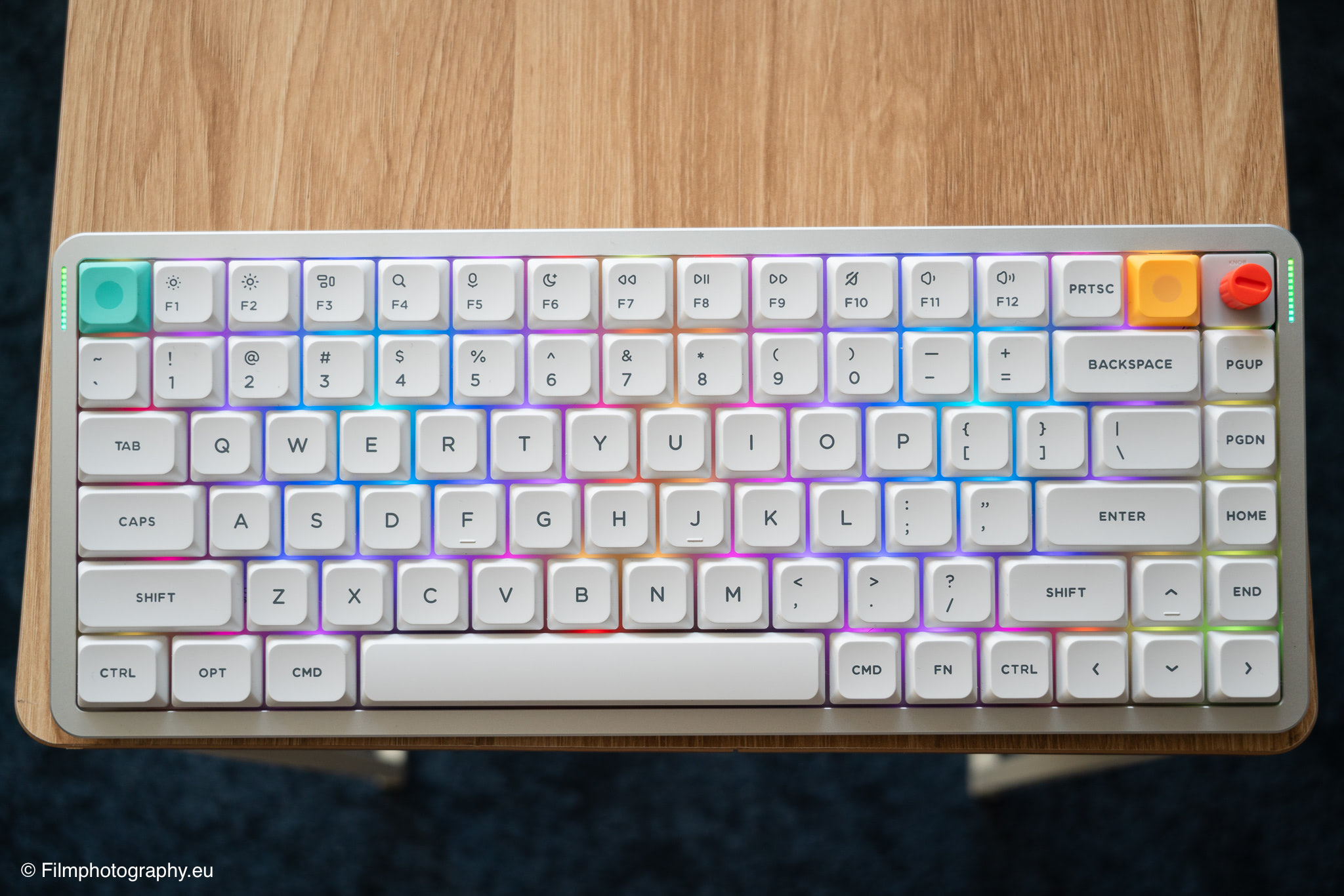
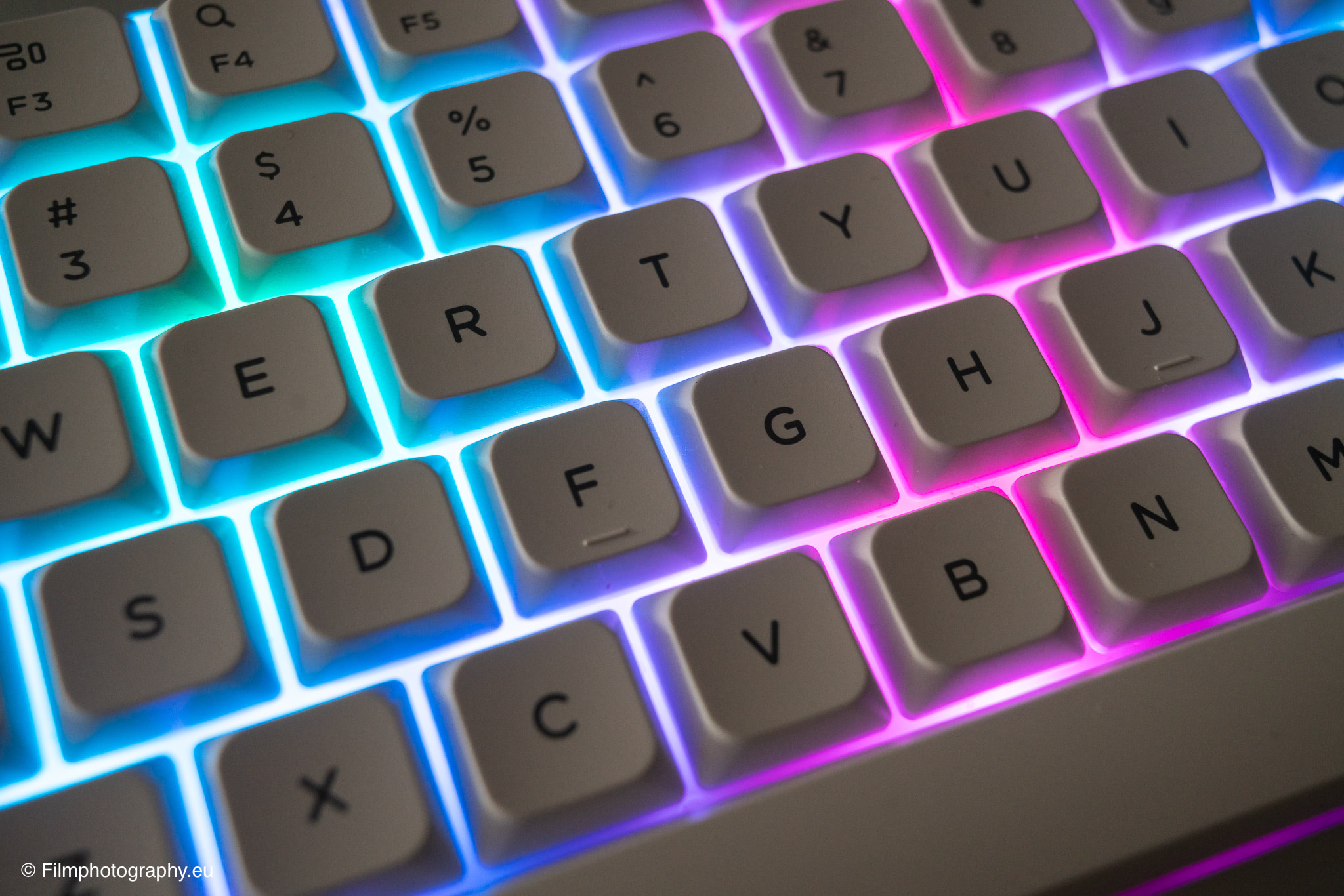
The lighting implementation is truly impressive. A particularly striking feature is the visual effect created in a darkened room, where the keys appear to be floating above the illumination.
It would be a nice touch, however, if the brightness could adjust automatically—for example, becoming slightly brighter during the day and then dimming automatically as it gets dark. It is also somewhat unfortunate that you cannot save multiple lighting modes within a single profile—such as a specific static color that you could activate with a simple click.
While you can assign keys to cycle through different colors,—unless I have completely overlooked the feature—you cannot define a selection of specific static colors or favorite lighting effects to toggle through with a single click. Instead, you are forced to cycle through every single available lighting pattern.
In Lightroom
Whether in Photoshop or Lightroom, photographers rely heavily on the keyboard. By utilizing keyboard shortcuts, you work significantly faster and avoid the distraction of constantly searching through menus.
Anyone who spends time after a shoot reviewing, rating, and sorting hundreds of images knows how to appreciate a reliable input method. Naturally, all standard keyboard shortcuts function absolutely seamlessly on the NuPhy Air.
However, things get particularly interesting during the image editing phase, when you leverage the keyboard’s programmability to streamline repetitive workflows. Tasks such as star-rating photos, applying color labels, or switching between the Library and Develop modules feel incredibly smooth and intuitive, thanks to the tactile feedback provided by the mechanical switches.
By assigning dual functions to keys—for instance—a short press can be used to adjust the radius of the correction brush, while a long press jumps directly to the mask overview. In theory, the rotary dial can also be customized to allow you to scroll through your image gallery. It requires some discipline to train yourself to use these new tools, but the resulting increase in speed when processing analog scans or digital RAW files is palpable.
The rotary dial is also highly effective for general image editing tasks; for example, it can be utilized for the zoom function. It is also extremely practical for quickly scrolling through your images.
Conclusion
Regardless of the writing instrument used, an “A” remains an “A.” However—much like with analog writing tools—it certainly makes a difference whether you write with a pencil, a standard ballpoint pen, or a high-quality fountain pen.
Likewise, it makes a difference whether you use an on-screen keyboard, a laptop keyboard, or an external keyboard. It has a direct influence on how you write, and an indirect influence on how you think.
The NuPhy Air V3 demonstrates very vividly just how pleasant and solid working at a computer can feel—once you have moved past the initial adjustment phase. The yielding typing sensation provided by its mounting system, combined with the dampened sound of the Nano switches, creates an atmosphere conducive to focused work.
I can highly recommend that everyone try writing with an external keyboard at least once—especially if you have previously relied solely on on-screen or laptop keyboards. Doing so restores a physical dimension to the craft of writing—or even photo editing—that is often lost within the purely digital realm.
Buy
Anyone interested in this keyboard can find further detailed information, as well as the option to order, directly on the manufacturer’s website. It is also possible to purchase it via Amazon.

I totally get what you mean about the muscle memory! I’ve been using a MacBook exclusively for the last ten years, and the thought of switching to something with more key travel is honestly a bit intimidating. It’s reassuring to hear it only takes a few days to adjust. That Nova White version looks incredibly clean, by the way!
That rotary knob sounds like an absolute game-changer for Lightroom. I currently use a trackpad for scrolling through my galleries and zooming, but having a dedicated physical dial must feel so much more precise and tactile.
Great review.
Really like it. You should try other keyboards from Nuphy. The Field 75 would be aewsome.